3MF viewer
Look inside a 3MF project: every part, its colour and the overall size.
Save as: · · ·
More options
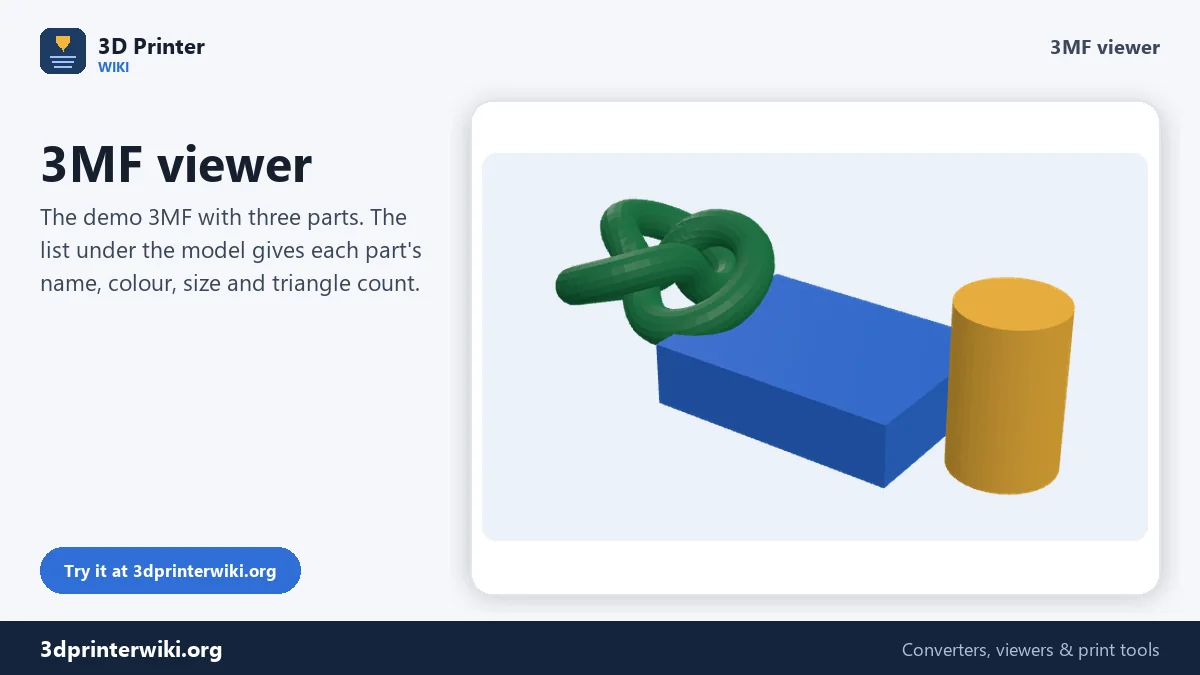
A 3MF file is more than a mesh. Slicers pack the whole project into it: every object and part, their names, the filament assigned to each, the position on the plate, and often the print settings too. That is great inside the slicer, but sometimes you just want to look. Which parts are in this download? How big is it? Which part prints in which colour? This 3MF viewer opens the file, shows every part in 3D in its filament colour, and lists each part with its name, size and triangle count.
How to view a 3MF file
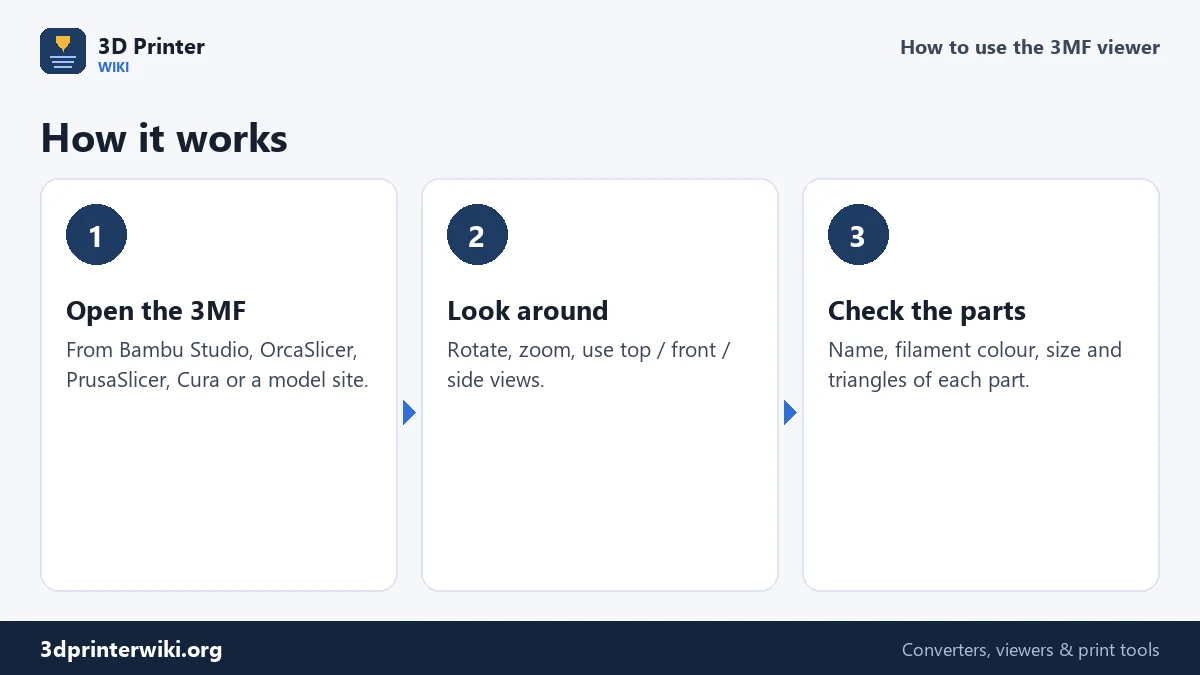
- Drop the 3MF on the box, or choose it from your computer or phone.
- Look at the model. Drag to rotate, scroll or pinch to zoom, and use the 3D, Top, Front and Side buttons for standard views.
- Read the details. The line under the model gives the overall size, triangles and volume. When the file has several parts, a list shows each part's name, colour, size and triangle count.
- Save it if you want: as STL, 3MF or OBJ, or as a PNG picture.
Files from Bambu Studio, OrcaSlicer and PrusaSlicer
Every slicer writes 3MF a little differently. Bambu Studio and OrcaSlicer store each object's mesh in its own file inside the 3MF and link them together; the viewer follows those links. They also save which filament each object or part uses, and the filament colours, in their own settings files inside the 3MF. The viewer reads those, so a project with a white base and black letters is drawn white and black, the way you saw it in the slicer. PrusaSlicer files work the same way.
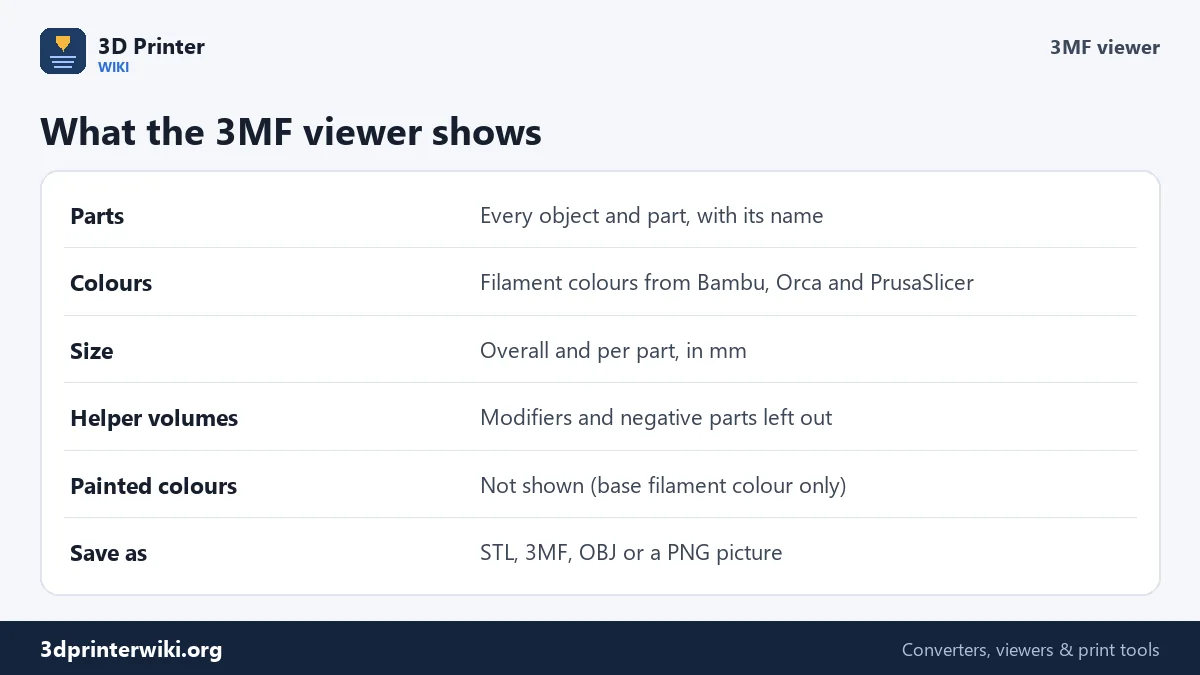
Slicer projects also contain parts that aren't printed: modifier volumes that change settings in an area, negative volumes that cut holes, and support blockers and enforcers. The viewer leaves those out, so what you see is what would actually be printed.
3MF files from Cura, Microsoft 3D Builder, Fusion and other CAD programs use the standard colour definitions of the 3MF format, which are shown as well. Parts without any colour get different colours from a palette, so you can still tell them apart.
What isn't shown
Colours painted onto a model with a slicer's painting tool are stored per triangle in a slicer-specific way. The viewer shows the part in its base filament colour instead. Print settings, supports generated by the slicer and the plate layout of multi-plate projects aren't drawn either. Objects from every plate are shown where the slicer put them, so a project with several plates appears as several groups side by side.
Reading the part list
For each part the list shows the colour swatch, the name and the size of its bounding box in millimetres, with the triangle count. The names come from the slicer: object names you typed, or the file names of the STLs that were loaded into the project. Sizes per part help when you're checking whether a piece fits your printer, or matching a part in the list to a part in the 3D view.
Want the parts as separate files? Use Save as STL on the 3MF to STL converter with the per-part option, or the STL splitter.
Why view a 3MF without a slicer?
- On a phone or tablet, where no slicer runs.
- On a work or school computer where you can't install software.
- To check a download before importing it into your slicer, especially big projects that take a while to open.
- To answer a question quickly: how tall is it, how many parts, which colours.
- To make a picture of the whole project with the PNG button.
Is it ready to print?
After loading, the viewer checks the mesh and writes the result into the line under the model. Closed solid means every edge is shared by two triangles: the model is watertight, the volume shown is exact, and a slicer will have no trouble with it. A number of open edges means holes or gaps somewhere. Most slicers repair small problems on import, but if the number is large, run the file through STL repair first.
Compare the overall size with your printer's build volume too. A project laid out for a large printer may not fit on a smaller one, and the size line tells you straight away. The per-part sizes in the list show whether individual parts fit when the whole layout doesn't.
3MF viewer questions
How do I open a 3MF file online?
Drop it on this page. The model appears in 3D with every part, its colour and its size.
Can I open a Bambu Studio 3MF without Bambu Studio?
Yes. The viewer reads Bambu Studio and OrcaSlicer project files, including the filament colour of each part.
Why are my painted colours missing?
Painted colours are stored in a slicer-specific way and aren't shown. Each part is drawn in its base filament colour.
Can I open a 3MF without installing anything?
Yes. This page works in any current browser on Windows, Mac, Linux, Android and iPhone.
Can I convert the 3MF after viewing it?
Yes. Save it as STL, 3MF, OBJ or a PNG picture with the links under the viewer.
Can I see the plate layout of a Bambu project?
Objects are shown where they were placed, so several plates appear as groups side by side. Plate outlines themselves aren't drawn.
Does the 3MF viewer show supports?
No. Supports are generated by the slicer when it slices, so they are not part of the 3MF model.
Why are all my parts the same colour in another viewer?
Many viewers read only the standard 3MF colours. Bambu Studio, OrcaSlicer and PrusaSlicer keep filament colours in their own settings, which this viewer reads too.
More 3D printing tools
Updated November 2026 · How these tools work