STL scaler
Resize a model to the exact size you need and download it again.
More options
Every slicer can scale a model, so why scale the STL itself? Because the size then travels with the file. A model you share, sell, upload to a print service or open in CAD should already be the right size, not need a scale factor someone has to remember. This STL scaler resizes the file by a percentage, to an exact width, depth or height in millimetres, or fixes unit mistakes like a model drawn in inches, and shows the before and after size so you can check it.
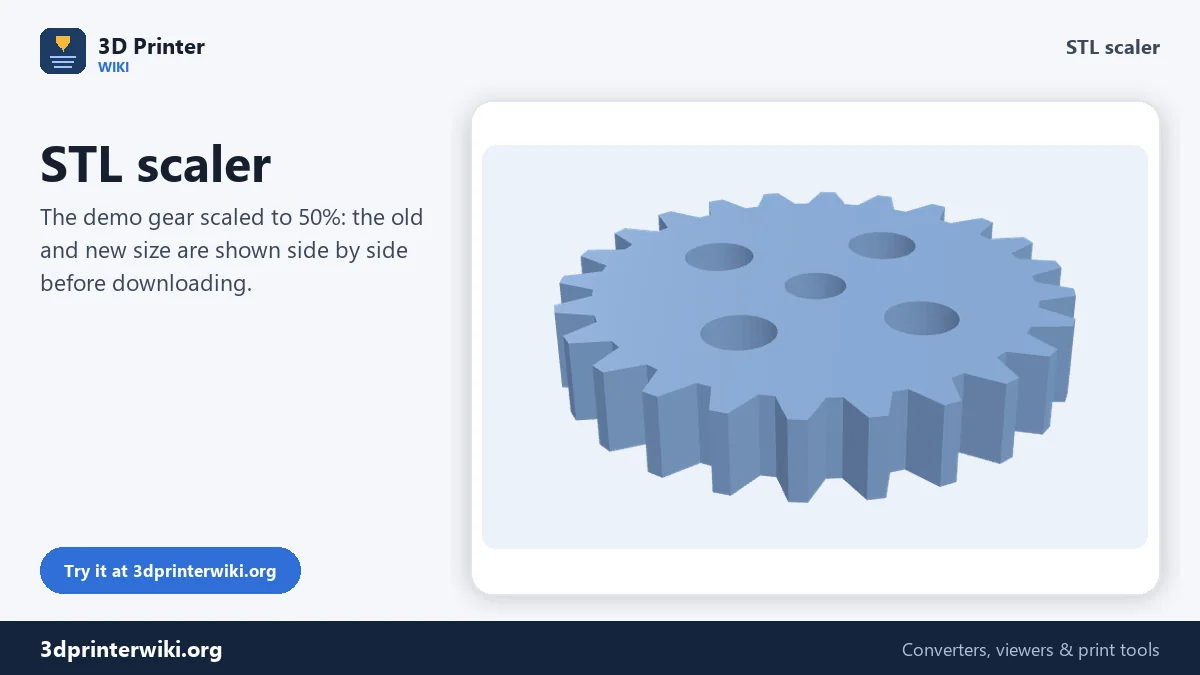
How to scale an STL file
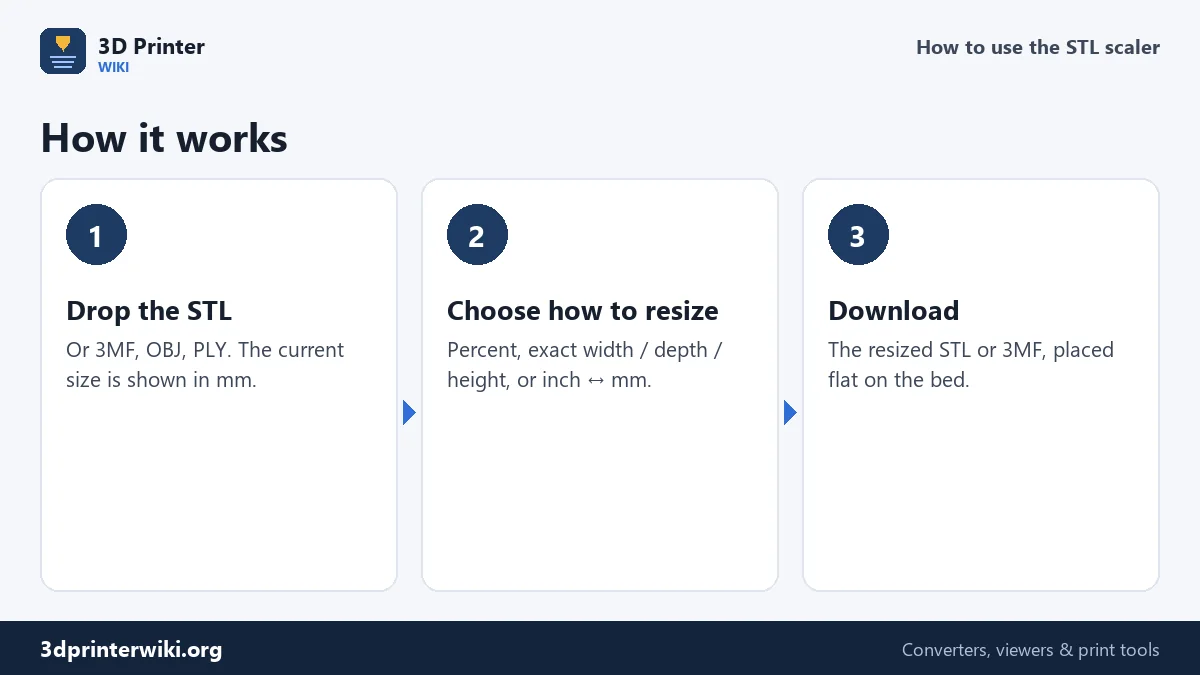
- Drop the STL. The current size appears under the preview.
- Choose how to resize in Resize by: a percentage, a target width (X), depth (Y) or height (Z) in millimetres, or a unit conversion (inches → mm, mm → inches, cm → mm).
- Enter the value and read the new size in the line under the model.
- Download the scaled STL or 3MF. The model is placed flat on the bed and centred.
Fixing a model in the wrong units
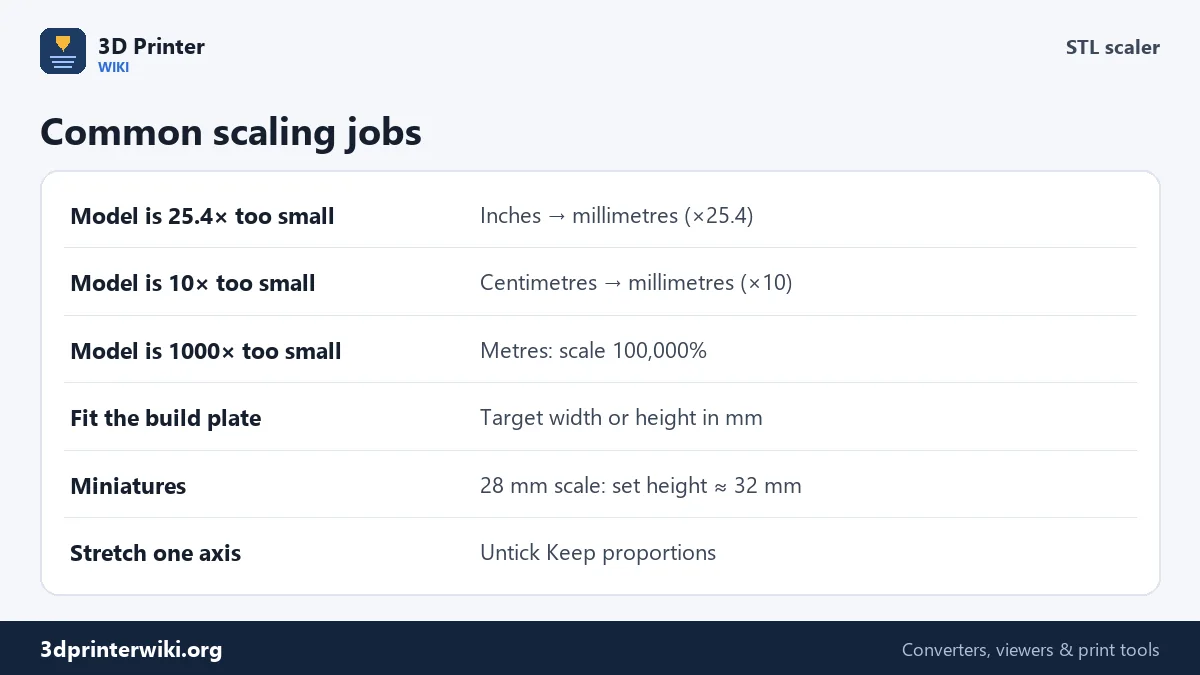
STL files have no units. A model drawn in inches stores "2" for two inches, and every slicer reads it as 2 mm. The result is a model 25.4 times too small. The same happens with centimetres (10 times too small) and metres (1000 times too small), and in reverse for models exported in millimetres into programs that expect inches. Choose the matching conversion and the model gets its real size back. For metres, use Percentage with 100,000%.
How do you know? Look at the size: a phone stand that measures 3.15 × 2.36 × 4.72 is almost certainly in inches (80 × 60 × 120 mm). A building model 0.12 wide was probably exported in metres.
Scaling to an exact size
Choose Target height (Z) to make a figure exactly 75 mm tall, Target width (X) to fit a sign into a frame, or Target depth (Y) to fit a shelf. With Keep proportions ticked (the default), the other two dimensions scale by the same factor. Untick it to stretch or squash only one axis, for example to make a box taller without making it wider, or set separate X, Y and Z percentages under More options.
What changes when you scale
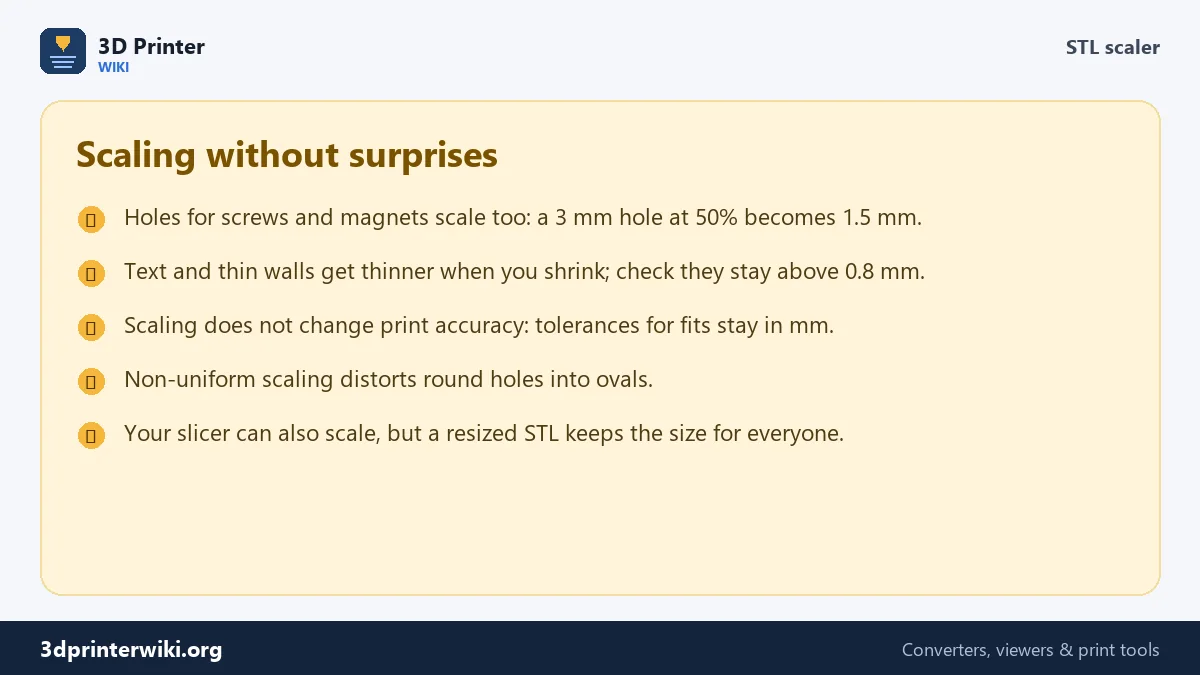
Everything scales together, including holes, slots and walls. That is what you want for a figurine, but not always for functional parts. Shrink a bracket to 50% and its 3 mm screw holes become 1.5 mm, too small for the screw. A snap-fit designed with 0.2 mm clearance gets 0.1 mm clearance and may not fit. For functional parts, scale in CAD instead, where you can keep hole sizes fixed. The STL to STEP converter brings the mesh into CAD if you need to.
Uneven scaling distorts shapes: round holes become ovals and threads stop matching. Use it for boxes and plates, not for parts that must mate.
Scaling here versus in the slicer
Scaling in the slicer is fine for one print. Scaling the file is better when you want the size to stick: when you upload a remix, send a file to a print service, combine parts in CAD, or will print it again in six months. The download is a binary STL or a 3MF, both of which keep the exact new size.
Will it fit my printer?
The new size line tells you the exact dimensions before you download, so you can check them against your build volume. Common printers:
- Bambu Lab A1 mini: 180 × 180 × 180 mm.
- Bambu Lab A1, P1S and X1 Carbon: 256 × 256 × 256 mm.
- Prusa MK4: 250 × 210 × 220 mm.
- Creality Ender-3 V2: 220 × 220 × 250 mm.
Leave 5 to 10 mm of margin for a skirt or brim and for the purge line many printers draw at the front. A part that is slightly too long can often still fit diagonally: on a 256 mm square bed the diagonal is about 360 mm, though the part's width reduces that. If a model is far too big at the size you want, cut it into pieces in your slicer rather than shrinking it until details disappear. Check the height as well: tall, thin parts can wobble near the top and often print better lying down.
STL scaler questions
How do I scale an STL file?
Drop it on this page, choose Percentage or a target size, enter the value, and download the resized STL.
How do I convert an STL from inches to mm?
Choose Inches → millimetres (×25.4) in Resize by, then download. The model gets 25.4 times bigger, its true size in millimetres.
Can I scale an STL to a specific height?
Yes. Choose Target height (Z) and enter the height in mm. Width and depth follow proportionally.
Does scaling reduce quality?
No. Scaling only multiplies the coordinates. The triangle count stays the same, so detail is kept at any size.
Can I scale just one direction?
Yes. Untick Keep proportions under More options and set separate X, Y and Z percentages.
How do I make an STL fit my build plate?
Choose Target width, depth or height, enter a size a little under your build volume, and download. The other sides follow proportionally.
What percentage turns inches into millimetres?
2,540%, the same as the Inches → millimetres option (×25.4).
How do I scale an STL by 50%?
Choose Percentage in Resize by, enter 50 and download. Every side becomes half as long, and the volume one eighth.
Why did my model get much heavier after scaling up?
Weight grows with volume: doubling every side makes a part eight times heavier and uses eight times the filament.
More 3D printing tools
Updated November 2026 · How these tools work