OBJ viewer
Preview an OBJ model and its size before you print, render or send it.
Save as: · · ·
More options
OBJ is one of the oldest and most widely supported 3D formats. Blender, ZBrush, Maya, scanners, photogrammetry tools and countless model websites export it. It's plain text, so it opens almost anywhere, but most operating systems have no built-in way to look at one. This OBJ viewer shows the model in 3D in your browser, gives its size, triangle count and parts, and lets you fix the two classic OBJ problems, units and up axis, before saving it for printing.
How to view an OBJ file
- Drop the .obj file on the box. The .mtl file and textures aren't needed.
- Look at the model. Drag to rotate, scroll to zoom, and use 3D, Top, Front and Side. Tick Show wireframe under More options to see the mesh.
- Check the size. If it's far too big, too small, or lying down, change Source units or Up axis under More options.
- Save it as STL or 3MF for printing, OBJ again, or a PNG picture.
What's inside an OBJ
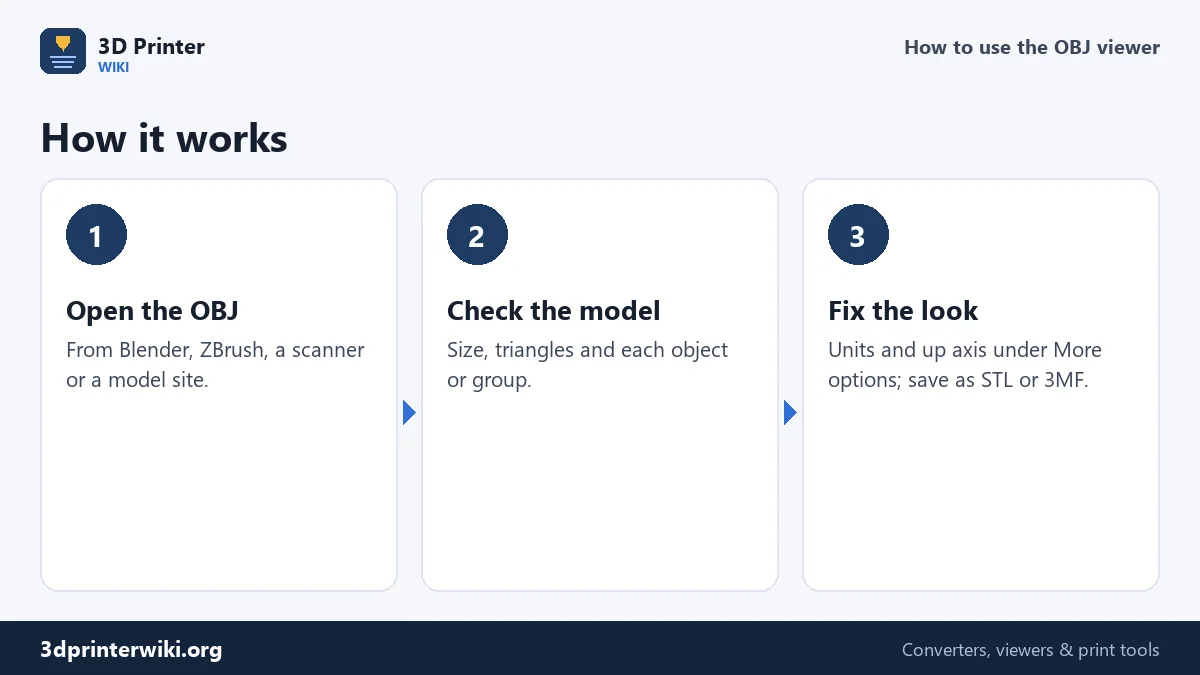
Open an OBJ in a text editor and you'll see lines starting with v (a vertex position), vt (a texture coordinate), vn (a normal) and f (a face, listing the vertices it uses). Faces can be triangles, quads or larger polygons; the viewer splits them into triangles. Lines starting with o or g start a new object or group, which the viewer shows as separate parts, listed with their names under the model.
A line like mtllib model.mtl refers to a separate material file with colours and texture images. The viewer shows the shape only and doesn't need that file. For printing that's no loss, since STL can't hold colours or textures either.
Up axis and units
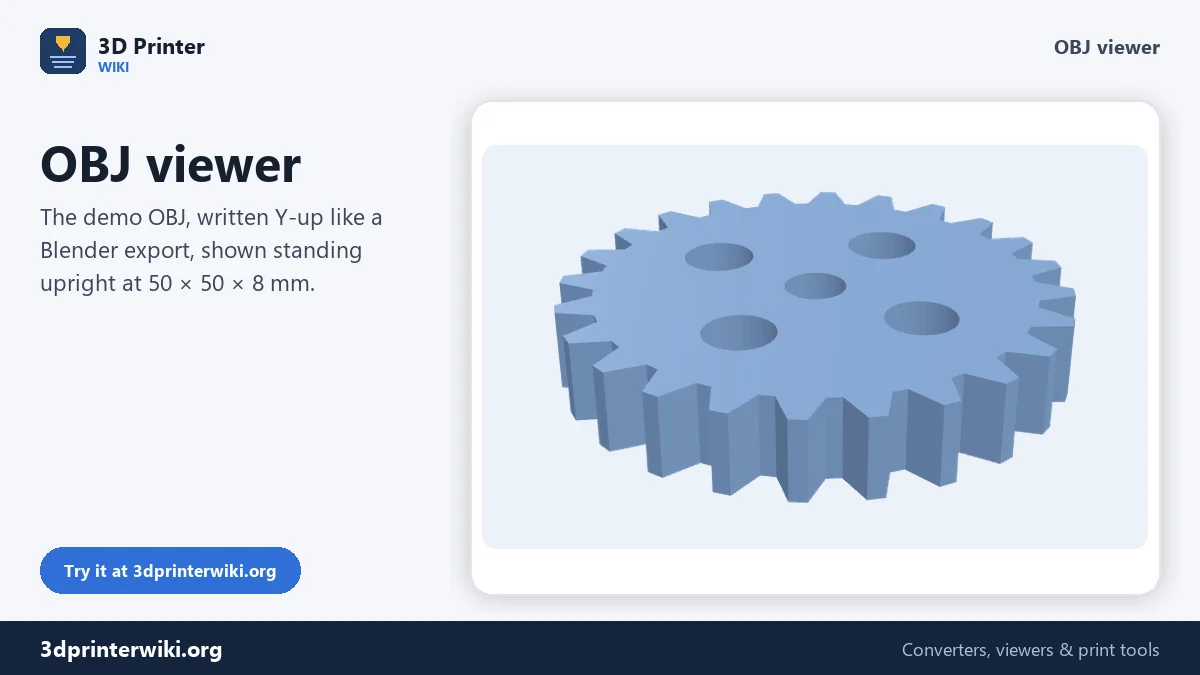
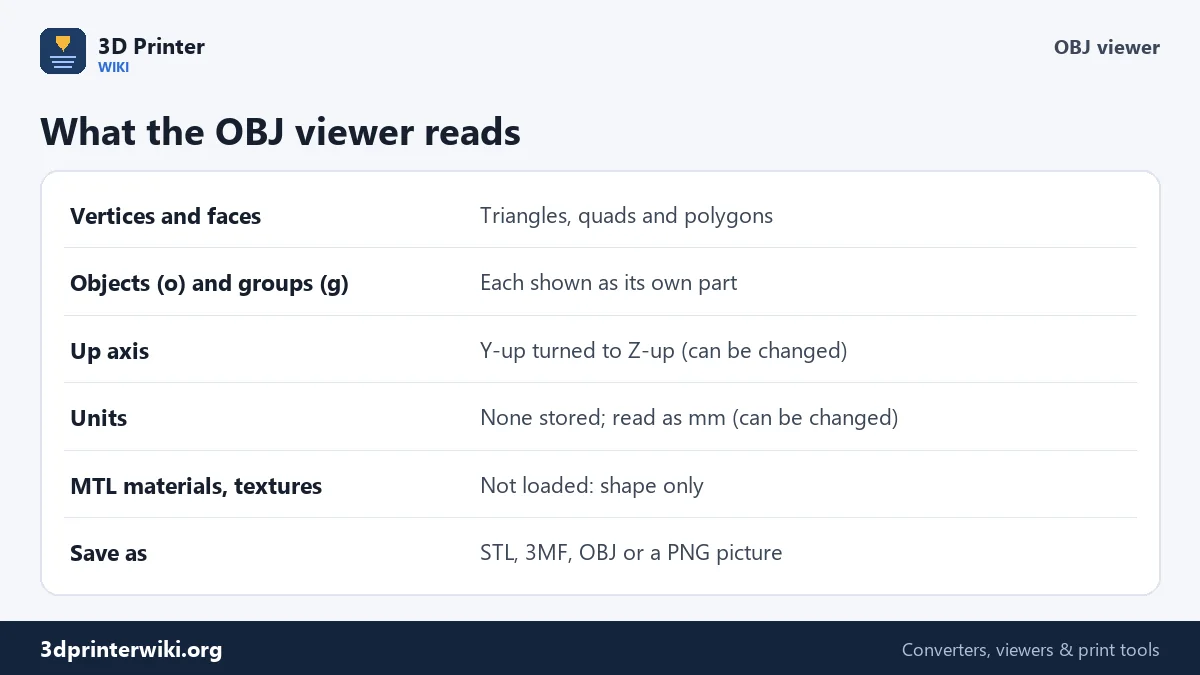
OBJ has no fixed up direction and no units. Most 3D programs, including Blender with its default export settings, write OBJ files with Y up, and the viewer assumes that and turns the model so it stands on the build plate. The demo on this page is a gear written that way. If your OBJ came from a CAD program or a scanner that writes Z up, the model will lie on its side: choose Z is up.
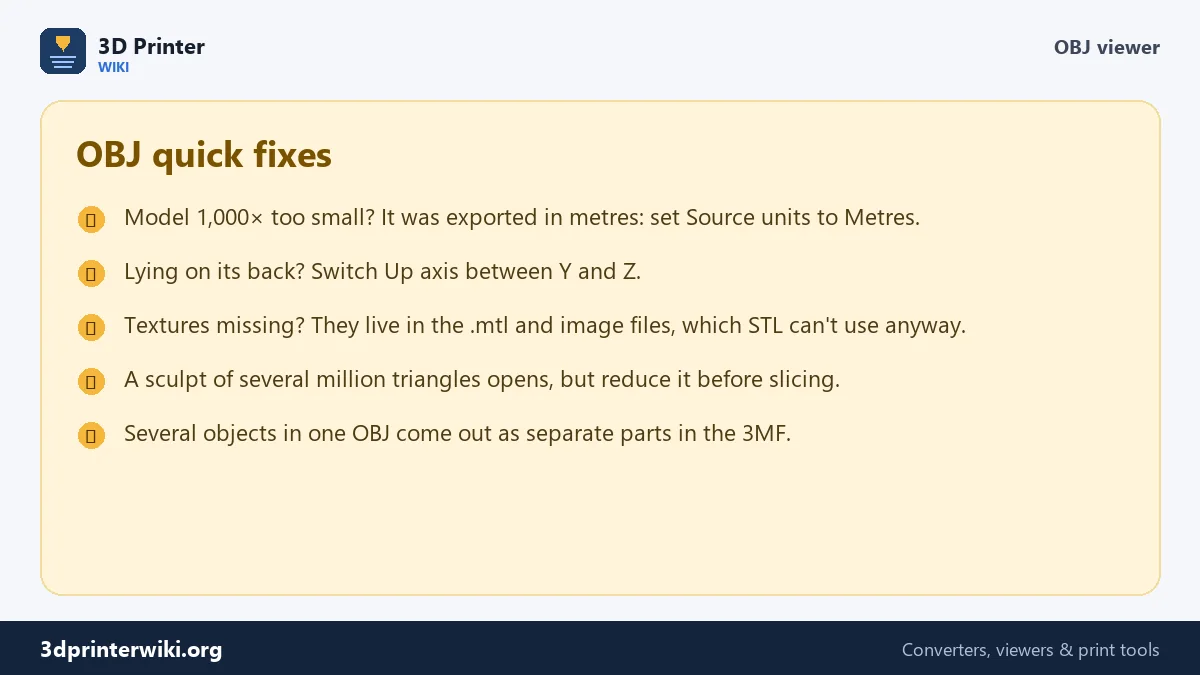
Units are a guess too. The viewer reads the numbers as millimetres. Blender writes metres by default, so a 50 mm part modelled at real size arrives as 0.05 and is shown as a speck of 0.05 mm. The viewer warns you when a model is under 2 mm or over 1.5 m; pick Metres or Centimetres in Source units and the size is right.
Big sculpts and scans
OBJ files from ZBrush or photogrammetry can be hundreds of megabytes with millions of triangles. They open here as long as your device has enough memory, and the triangle count under the model tells you how heavy the mesh is. For printing, anything over about a million triangles is more than a slicer needs; reduce it after saving as STL.
Going from OBJ to a print
For a straight conversion, use Save as STL or the OBJ to STL converter, which also lets you save each object as its own STL. If the OBJ has several objects you want to print in different colours, save it as 3MF: each object becomes its own part you can give a filament. Sculpts and game models often have holes or flipped faces; the STL repair tool fixes them.
Is the OBJ printable as it is?
Under the model, the viewer checks every edge of the mesh. Closed solid means every edge is shared by exactly two triangles, which is what a slicer needs to know what is inside and outside. The volume shown is then exact. If the line lists open edges instead, the surface has holes. That's normal for many OBJ files: game models are often open at the neck or bottom, scans are open where the object stood, and some models are built from separate, overlapping pieces.
When a file has several objects or groups, the list under the model shows each one with its name, size and triangle count. That helps to find a stray piece, like a ground plane exported with a figure, or a helper object left over from modelling. You can drop such pieces later with the STL splitter, or close holes with STL repair.
OBJ viewer questions
How do I open an OBJ file online?
Drop it on this page. It appears in 3D with its size and triangle count.
Do I need the MTL file?
No. The viewer shows the shape only, so the .mtl and texture files aren't needed.
Why does my OBJ look tiny?
It was probably exported in metres. Choose Metres in Source units under More options.
Why is my OBJ lying on its back?
It was written with Z up instead of Y up. Choose Z is up in Up axis.
Can I convert the OBJ to STL from the viewer?
Yes. Use Save as STL under the viewer, or the OBJ to STL converter for more options.
Can I view an OBJ with its textures?
No. The viewer shows the shape only. Use Blender or another 3D program to see textures.
How do I know if my OBJ is watertight?
The line under the model says "closed solid" or gives the number of open edges.
Can I open OBJ files on a phone?
Yes. The viewer works in mobile browsers; tap the box to pick the file from your phone or a cloud drive.
Why does my OBJ show many parts?
Every object (o) and group (g) in the file is shown as its own part, with its name in the list under the model.
More 3D printing tools
Updated November 2026 · How these tools work