STEP file viewer
Open a STEP or STP file and look at it in 3D, even on a phone.
Save as: · · ·
More options
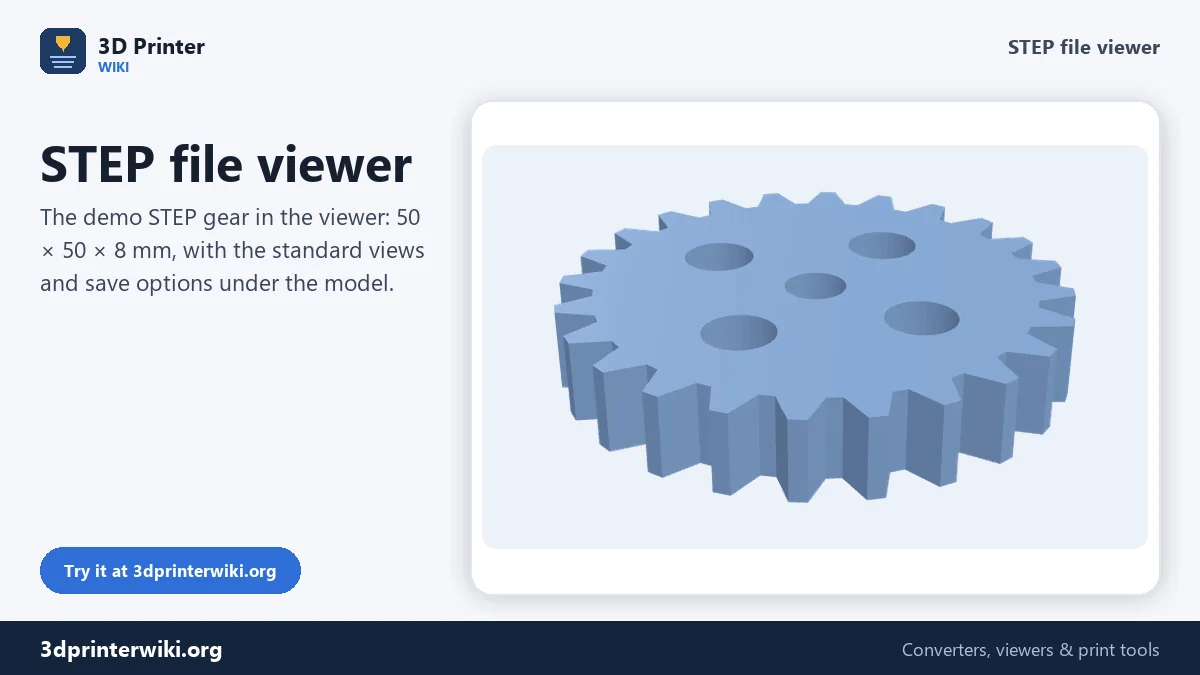
Someone sent you a STEP file, a supplier's website offers one for download, or you found a part you'd like to print, but there's no CAD program on this computer. Or you're on your phone. This STEP viewer opens .step and .stp files right in the browser, with the same kind of geometry kernel CAD programs use. Rotate the part, look at it from the standard views, read its size in millimetres, see each body of an assembly in its own colour, and save it as STL or a picture if you need to.
How to open a STEP file online
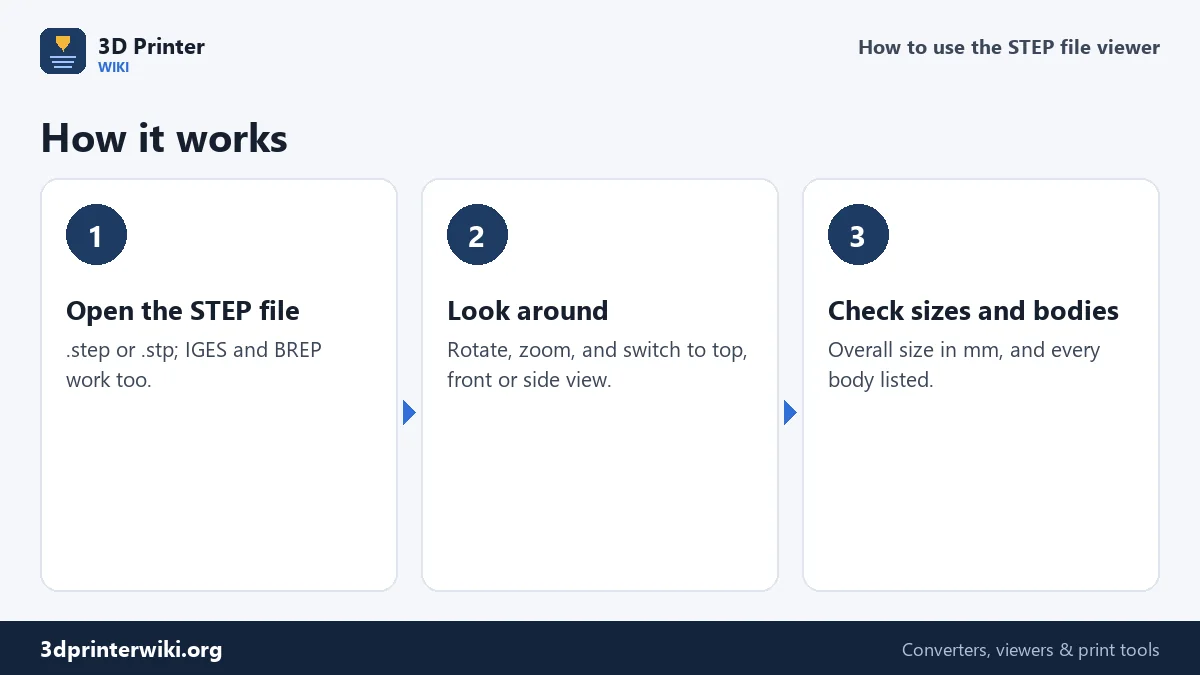
- Drop the .step or .stp file on the box, or tap it to choose a file. IGES (.igs, .iges) and OpenCascade BREP files open too.
- Wait a moment the first time. The CAD reader loads once (about 7.6 MB), then stays in your browser's cache.
- Look at the part. Drag to rotate, scroll or pinch to zoom, and use 3D, Top, Front and Side for the standard views. Tick Show wireframe under More options to see the mesh.
- Check the numbers under the model: size, triangles, volume and the number of bodies, with a list of bodies for assemblies.
What reads the file
STEP files describe exact geometry: planes, cylinders, cones, splines, and the edges where they meet. Reading them properly needs a CAD geometry kernel, not just a 3D model loader. The viewer uses Open CASCADE Technology, the open-source kernel that FreeCAD and many engineering tools are built on, compiled to run in the browser. It reads the solids and surfaces and splits them into fine triangles for display, close enough that holes look round and fillets look smooth.
The file is read on your own device, so very large assemblies depend on how much memory it has; a phone handles typical parts easily, while assemblies of hundreds of megabytes are better opened on a computer.
Assemblies and colours
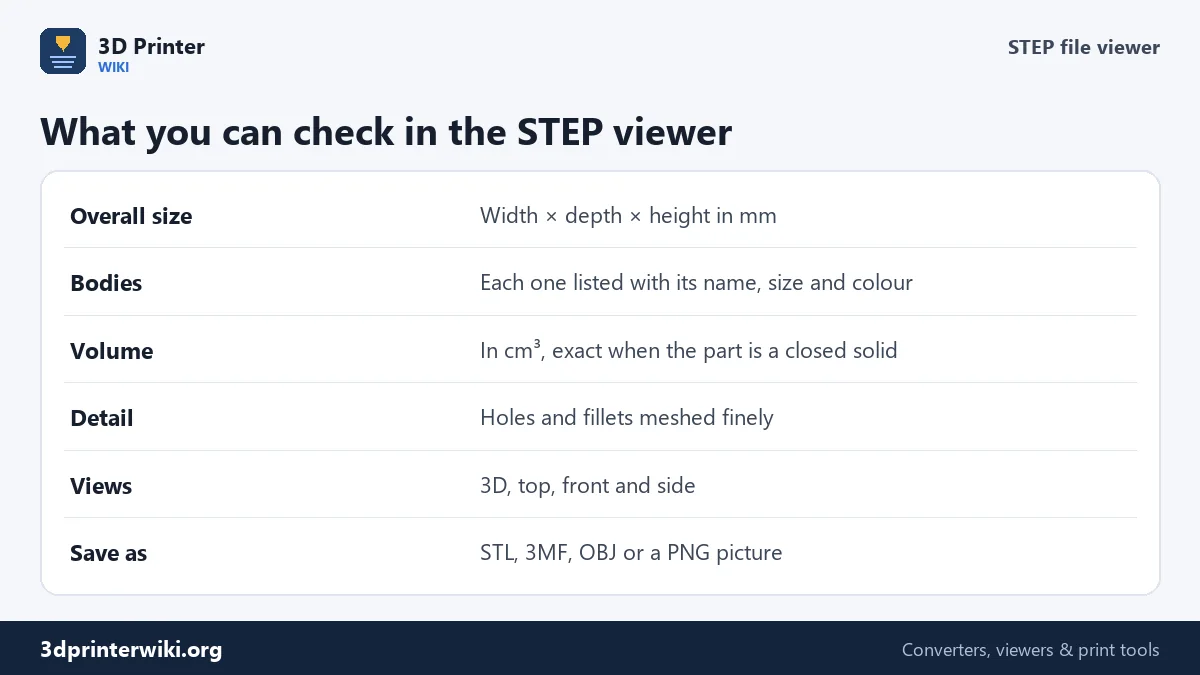
A STEP file can hold one part or a whole assembly with dozens of bodies. Each body is shown separately, in its colour from the CAD program when the file stores one. When there are several bodies, a list under the model gives each one's name, colour, size and triangle count. That makes it easy to see what an assembly is made of, or to check the size of one particular part.
Size and volume
The overall size is the bounding box of the part in millimetres, measured along X, Y and Z. STEP files store their units, so the size is right whether the part was drawn in millimetres or inches. The volume is shown in cm³, and the viewer checks whether the mesh is a closed solid, which is when that volume is exact. You can multiply it by a material density to estimate weight, or put into the STL volume calculator for a print weight and cost. The viewer doesn't measure between individual features, such as the distance between two holes; for that, open the file in a CAD program like FreeCAD, Fusion or Onshape.
Saving and sharing
Under the viewer you can save the part as STL or 3MF for printing, OBJ for Blender and renderers, or a PNG picture of the current view. For printing, the STEP to STL converter has more options, like saving each body as its own STL. A PNG is handy when you need to show a part to someone who doesn't have CAD software: they see exactly the view you chose.
If a STEP file won't open
- "No solid or surface geometry": the file contains only wireframe curves, points or annotation. Export it again from CAD with solids or surfaces included.
- It takes very long: huge assemblies with thousands of bodies need a lot of memory. Try on a computer, or ask for just the part you need.
- The file is a .zip: many part libraries pack STEP files in zip archives. Unzip first and open the .step inside.
STEP, STP, IGES and BREP
The viewer opens four CAD file types with the same reader. .step and .stp are the same format, ISO 10303, used by almost every CAD program for exchanging solids and assemblies. .igs and .iges are the older IGES format, often used for surface models. .brep is the native format of Open CASCADE, used by FreeCAD and some engineering tools. For all of them the part is shown in 3D, sized in millimetres, with every body listed.
STEP viewer questions
How can I open a STEP file without CAD software?
Drop it on this page. The part is shown in 3D with its size, on any computer or phone with a current browser.
Is STP the same as STEP?
Yes. .stp and .step are two extensions for the same ISO 10303 format.
Can I measure in the STEP viewer?
You get the overall size in millimetres and the volume. For distances between features, use a CAD program.
Can I open STEP files on a phone?
Yes. The viewer works in mobile browsers; very large assemblies are better opened on a computer.
Can I convert the STEP file after viewing it?
Yes. Save it as STL, 3MF, OBJ or a PNG picture with the links under the viewer.
Can I open STEP assemblies?
Yes. Every body of the assembly is shown and listed with its name, size and colour.
Is there a file size limit?
No fixed limit; it depends on your device's memory. Typical parts open in seconds, very large assemblies need a computer.
Why does the first STEP file take longer to open?
The CAD reader is downloaded once, about 7.6 MB. After that it comes from your browser's cache and files open quickly.
More 3D printing tools
Updated November 2026 · How these tools work