STL viewer
Drop an STL to see it in 3D with its size, volume and triangle count. Nothing to install.
Save as: · · ·
More options
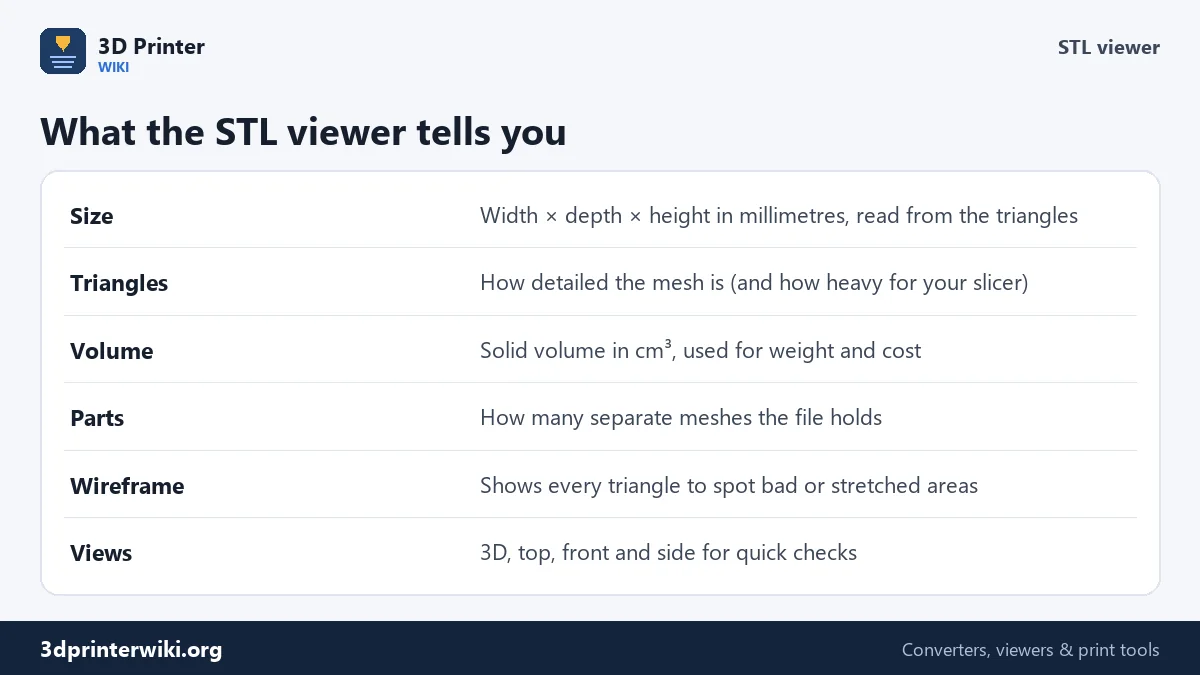
Sometimes you just want to see what is inside an STL before you start your slicer, send the file to a print service, or buy a model. This STL viewer opens the file in a few seconds, on a computer or on a phone, and shows you the model in 3D together with the numbers that matter for printing: the exact size, the number of triangles, the volume and how many separate parts it contains.
Everything happens on your own device. The STL is read in the page and drawn with WebGL, so even large files open without waiting for an upload, and nothing is stored anywhere.
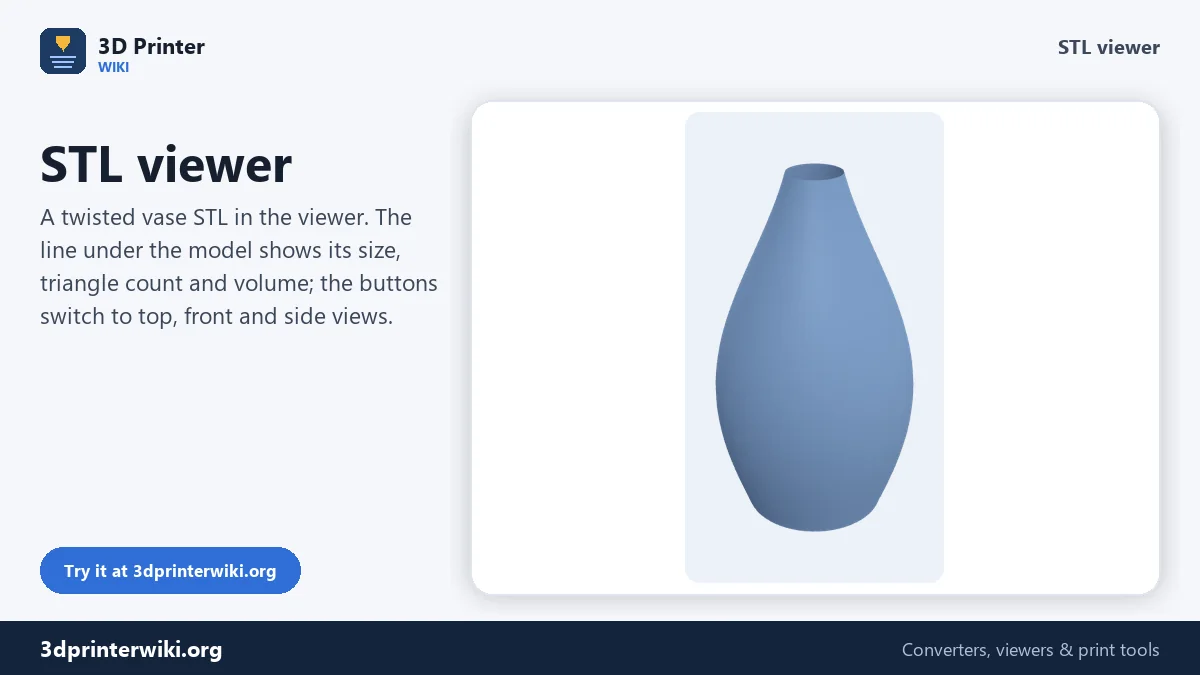
How to view an STL file
- Open the STL. Tap the box above and choose the file, or drag it from your desktop onto the page.
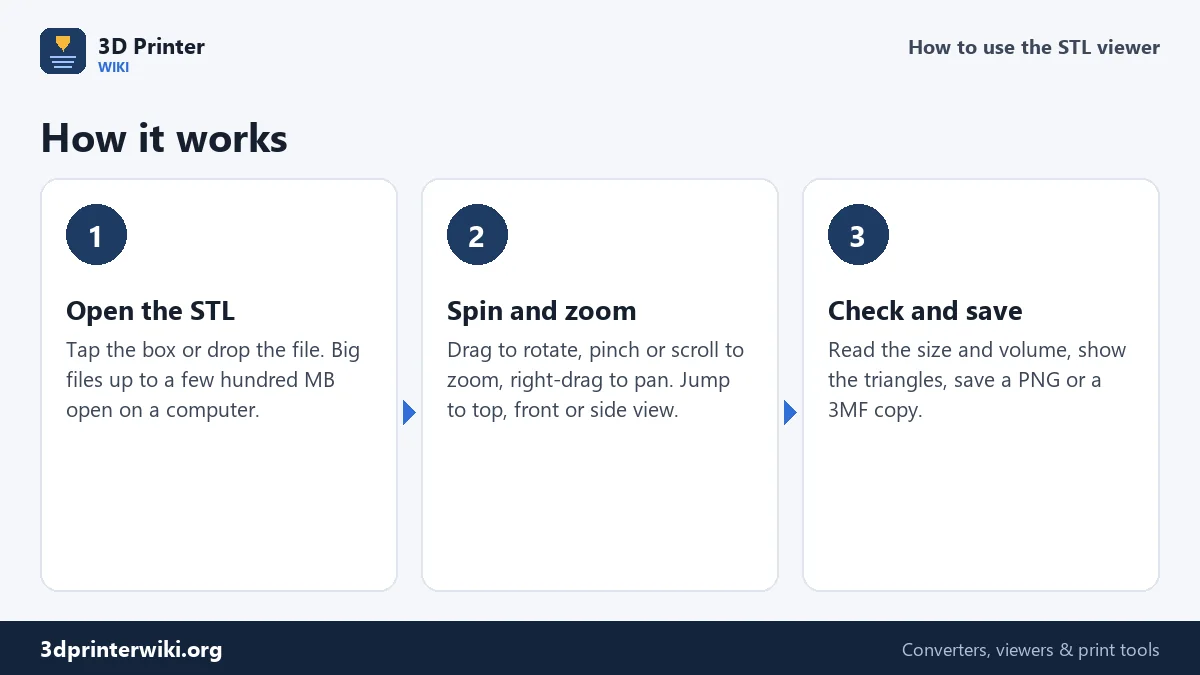
- Move around the model. Drag to rotate. Scroll or pinch to zoom. Right-drag (or two fingers on a phone) to pan. The 3D, Top, Front and Side buttons jump to fixed views.
- Read the numbers. The line under the model shows width × depth × height, the triangle count, the volume and the number of parts.
Under More options you can turn on the wireframe to see every triangle, change the source units if the size looks wrong, and switch off "Place on the build plate" to see where the model sits in its own coordinates. The links under the viewer save the model as STL, 3MF or OBJ, or save a PNG picture of the current view.
Reading the size correctly
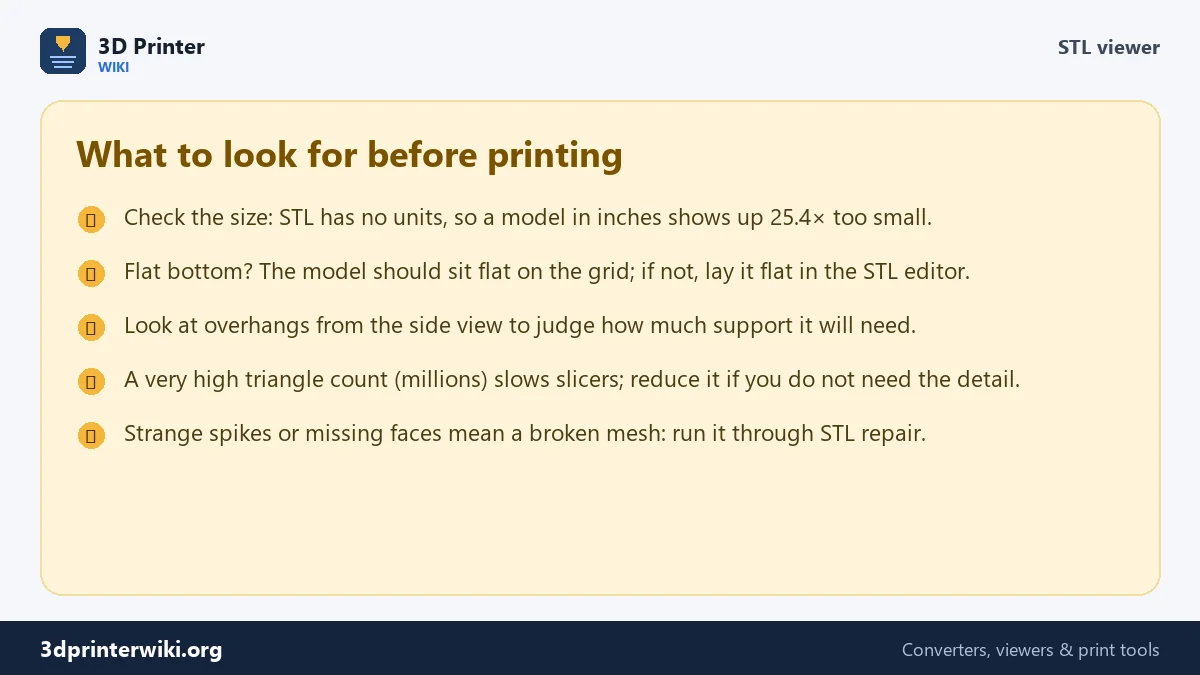
An STL file has no unit inside it. It only holds numbers. Slicers assume those numbers are millimetres, and so does this viewer. That works for almost every model made for printing. It goes wrong when a model was exported from a program set to inches or metres: a 2-inch part shows up as 2 mm wide, and a model from an architecture program can show up as 0.05 mm.
The viewer warns you when the size looks unlikely, and Source units under More options lets you tell it what the numbers really mean. The size line then shows the real size, and "Save as STL" writes the corrected file in millimetres. For more control, such as scaling to an exact height, use the STL scaler.
What the triangle count says
Every STL is a list of triangles. More triangles means more detail, and also a heavier file. As a rough guide:
- Under 10,000: simple mechanical parts, boxes, brackets, low-poly models.
- 10,000 to 500,000: typical figurines, cosplay parts, organic models.
- Over a million: 3D scans and sculpts. They print fine but can slow your slicer and are slow to upload.
If a file is much heavier than it needs to be, the STL file size reducer keeps the shape and drops most of the triangles. Turn on the wireframe here first to see how dense the mesh really is.
Five checks before you print
- Size: does it match what you expect? A keychain should be a few centimetres, not a few millimetres or a few metres.
- Flat base: in the Front view, does the model sit flat on the grid? If it is tilted, lay it flat in the STL editor.
- Overhangs: the Side view shows how much of the model hangs in the air and will need supports.
- Thin walls: very thin fins and walls may be thinner than your nozzle. Check them with the size line after scaling.
- Broken areas: missing faces, spikes or inside-out patches point to a damaged mesh. The STL repair tool fixes most of them.
Other files this viewer opens
The viewer is built for STL but reads every format the site supports: 3MF, OBJ, PLY, GLB, FBX, DAE, 3DS, AMF and even STEP and IGES. Each format also has its own page with notes on that format, for example the 3MF viewer shows every part in its colour, and the STEP file viewer opens CAD parts without CAD software.
STL viewer questions
How do I open an STL file without software?
Open this page in any modern browser and drop the STL on the box. It works in Chrome, Edge, Firefox and Safari on Windows, macOS, Linux, Android and iPhone, with nothing to install.
Can I view STL files on Windows 11?
Windows 11 no longer ships 3D Viewer by default. This online STL viewer does the same job and also shows the size and triangle count, which 3D Viewer did not.
Can I open an STL on an iPhone or Android phone?
Yes. Tap the box, choose the STL from Files or Downloads, and use one finger to rotate and two to zoom and pan.
Why is my STL so small or so big?
The file was saved in inches or metres, but STL has no units, so it is read as millimetres. Pick the right unit under Source units and save a corrected copy.
Is there a size limit?
No fixed limit. Files of a few hundred megabytes open on a normal computer; on a phone, files above about 100 MB can run out of memory.
Are my files private?
Yes. The file is opened on your device and never uploaded, so you can view client models and unreleased designs safely.
How do I know if my STL is printable?
The line under the model says "closed solid" when every edge is shared by two triangles, or gives the number of open edges if there are holes.
Can I view several STL files at once?
The viewer shows one file at a time. To see files together, combine them with the STL editor.
More 3D printing tools
Updated November 2026 · How these tools work