DXF to STL converter
Turn a 2D DXF drawing into a 3D part by extruding its closed outlines.
More options
DXF is the everyday file of 2D CAD, laser cutting and CNC routing. If you have a plate, a gasket, a bracket outline or a sign as a DXF, you can print it: extrude the outline to a thickness and you have a solid part. This DXF to STL converter reads the lines, arcs, circles and polylines in the drawing, joins them into closed outlines, works out which outlines are holes, and extrudes the result.
How to convert DXF to STL
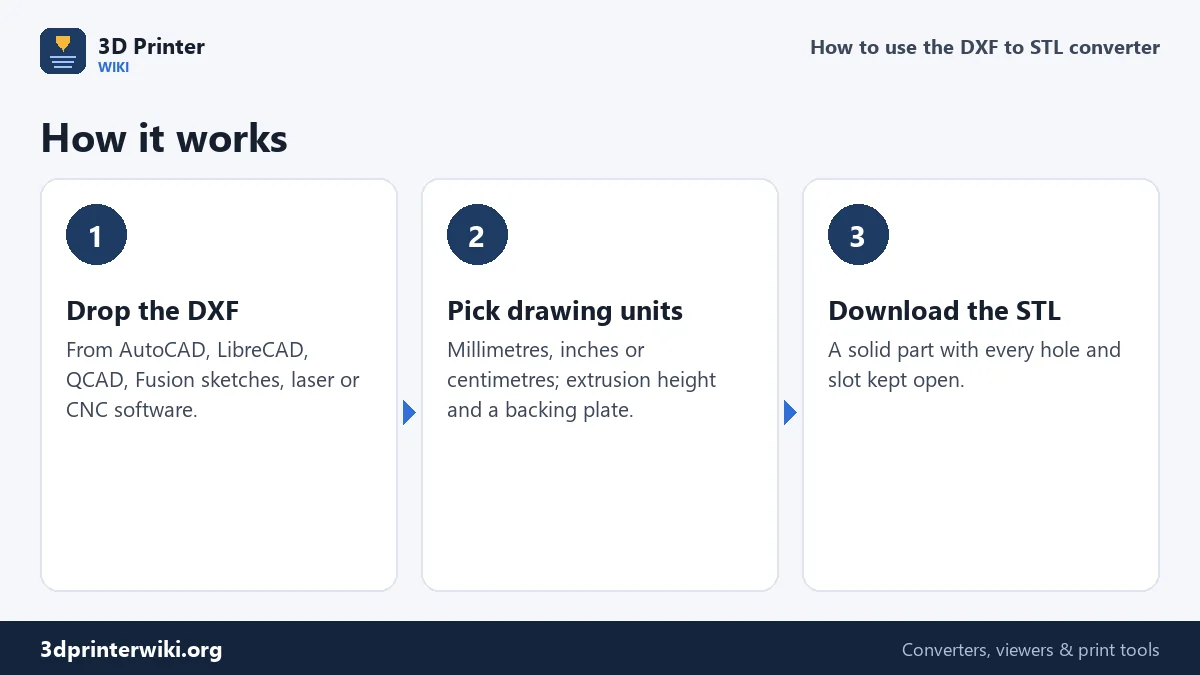
- Drop the DXF. Files from AutoCAD, LibreCAD, QCAD, DraftSight, Fusion 360 and SolidWorks sketches, Inkscape and laser cutter software all work.
- Choose the drawing units under More options. DXF files often do not say whether they are in millimetres or inches, so tell the converter.
- Set the extrusion height, and optionally a backing plate or a fit-to-width size.
- Download the STL or a 3MF.
How lines become solid shapes
A 3D printer needs a closed outline to know what is inside and what is outside. In a DXF, an outline is often not one object but a chain of separate LINE and ARC entities that happen to meet end to end. The converter follows those chains: it starts at one segment, looks for another segment that starts where this one ends, and keeps going until it gets back to the start. Closed polylines and circles are already complete outlines.
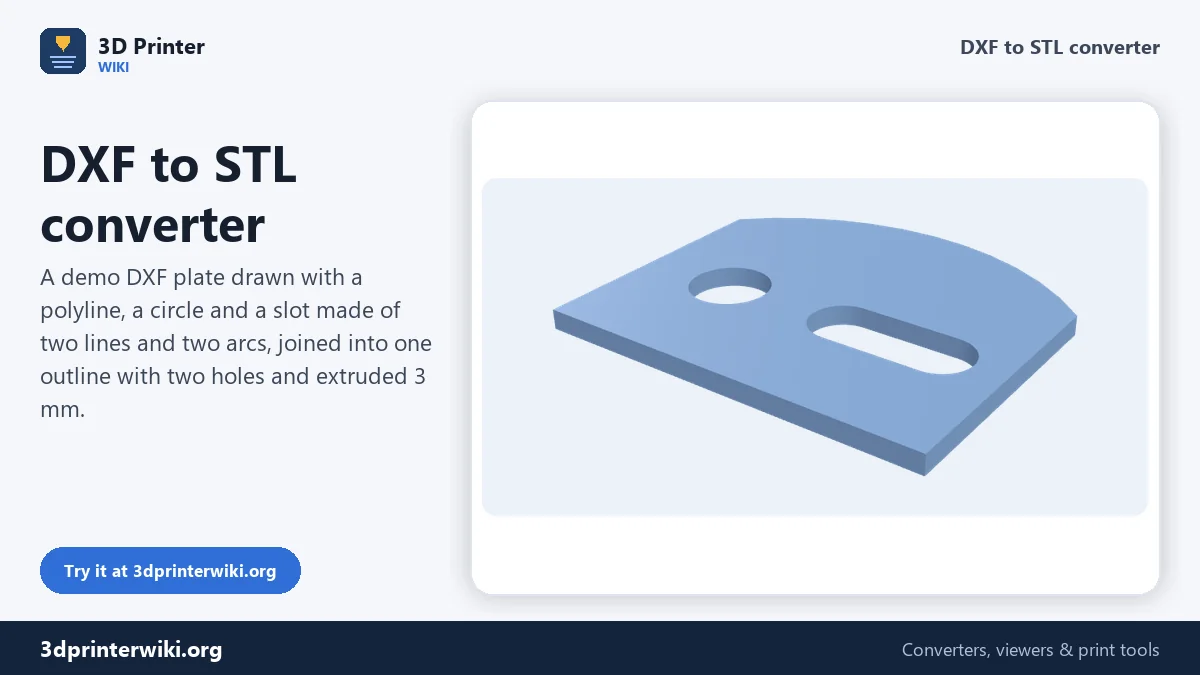
Next, the outlines are nested. An outline inside another outline is a hole; an outline inside a hole is an island (a solid part inside the hole), and so on. So a plate with four bolt holes, a slot and a rectangular window comes out exactly right: one solid plate with six openings. In the demo above, a plate drawn as a polyline with a rounded edge contains a circle and a slot built from two lines and two arcs; the result is one part with two holes.
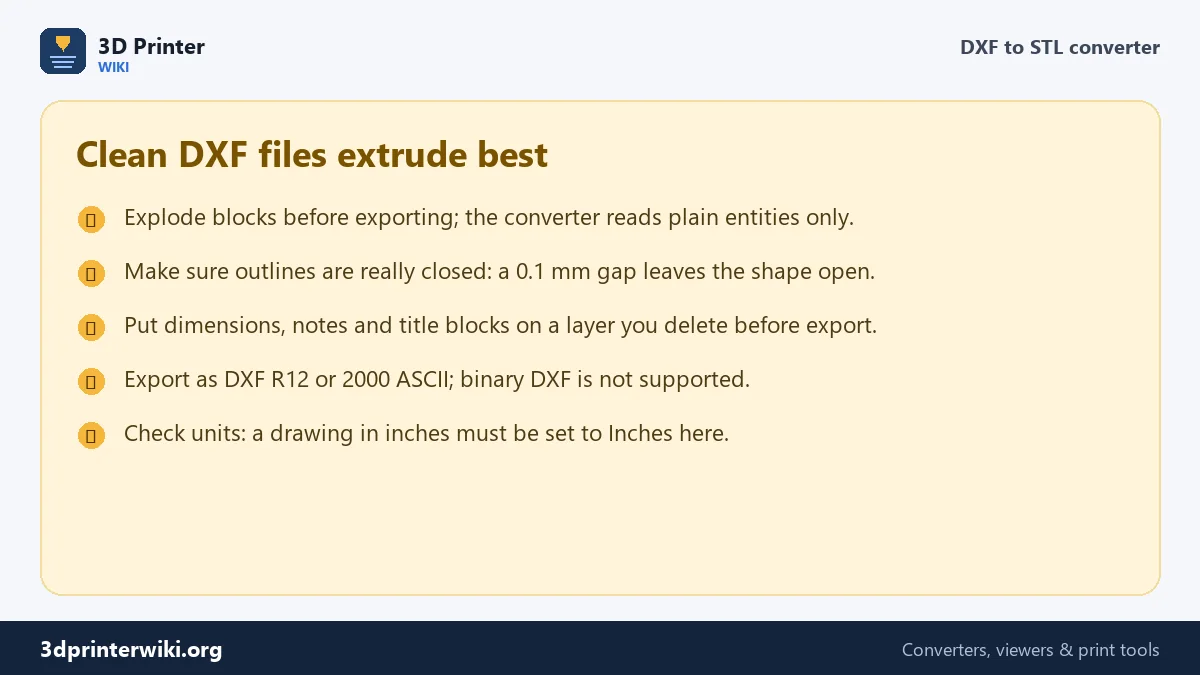
Open chains that do not close are skipped, and the converter tells you how many it skipped, so you can find the gap in your CAD program.
What is read and what is skipped
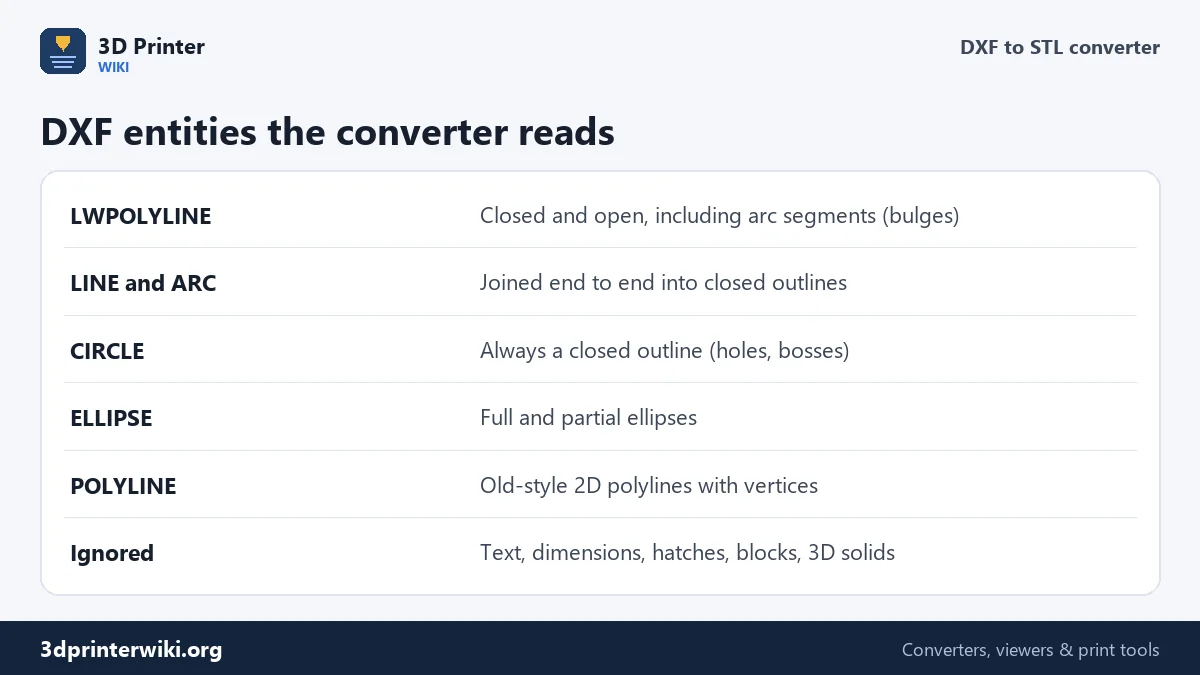
The converter reads the geometry entities used for outlines: LWPOLYLINE (including arc segments defined by bulge values), POLYLINE with VERTEX entries, LINE, ARC, CIRCLE and ELLIPSE. Splines are approximated by their control points. It ignores text, dimensions, hatches, leaders and images, which is what you want: a title block or a dimension line should not become plastic.
Blocks (INSERT entities) are not expanded. If your drawing uses blocks for repeated holes or features, explode them before exporting. Binary DXF files are not supported; export as ASCII DXF, version R12 or 2000, which every CAD program offers.
Millimetres or inches?
A DXF stores plain numbers. Many files include an $INSUNITS header, but plenty do not, and some say the wrong thing. That is why you choose the units here. If a 6-inch plate shows up as 6 mm wide, switch Drawing units to inches and the part becomes 152.4 mm. If you would rather scale to a known size, set Fit to width.
Typical DXF prints
- Gaskets and spacers printed in TPU, 1 to 3 mm thick.
- Mounting plates and brackets from laser-cut designs, printed in PETG for strength.
- Test fits before you pay for laser cutting or CNC milling: print the plate first, check the holes against your parts.
- Templates and jigs for drilling, routing and marking.
- Signs and letters designed in 2D CAD.
How thick should the part be?
The thickness setting turns the flat drawing into a solid. For signs and plates, 2 to 3 mm is stiff enough for parts up to about 100 mm across; go to 4 or 5 mm for larger ones. For gaskets and shims, use the real thickness you need, as thin as 0.4 to 0.6 mm, which is two or three layers at 0.2 mm. For stencils, 1 to 1.5 mm stays flat and is easy to hold. If the DXF is a profile for a bracket or a spacer, the thickness is simply the depth of the real part.
From STL back to DXF
Need the outline of a 3D part as a DXF for laser cutting or a drawing? The STL to DXF converter slices a model at any height and saves the cross-section as closed polylines.
DXF to STL questions
Can a DXF file be 3D printed?
Not directly, because a DXF is flat. Extrude its closed outlines to a thickness here, and the STL prints like any other part.
Why are some outlines missing?
They are not closed: their ends do not meet. The converter reports how many open chains it skipped. Close the gaps in CAD and try again.
Does the converter support DXF from Fusion 360?
Yes. Right-click a sketch in Fusion 360, choose Save as DXF, and drop it here.
Can I convert a 3D DXF?
No. 3D solids and meshes inside DXF files are not read. Export them from your CAD program as STL or STEP instead, and use the STEP to STL converter if needed.
Is DXF to STL the same as SVG to STL?
The idea is the same: extrude 2D shapes. SVG is common for graphics and logos; DXF for technical drawings. Use the SVG to STL converter for design files.
Can I convert DWG to STL?
Save the DWG as DXF in AutoCAD, LibreCAD or another CAD program, then convert the DXF here.
Why is my DXF part the wrong size?
The drawing was probably made in inches or another unit. Check the size shown and pick the right unit before downloading.
More 3D printing tools
Updated November 2026 · How these tools work