DAE to STL converter
Turn a Collada .dae file from SketchUp, Google Earth or a game asset into a printable STL.
Same file as: · · · ·
More options
DAE is the file extension of Collada, an XML-based 3D format. SketchUp exports it, models from SketchUp's 3D Warehouse and Google Earth use it, and many older game and animation tools read and write it. Slicers don't. This converter opens a DAE file, applies the unit and up axis stored in it, shows the model at its real size, and saves an STL for printing.
How to convert DAE to STL
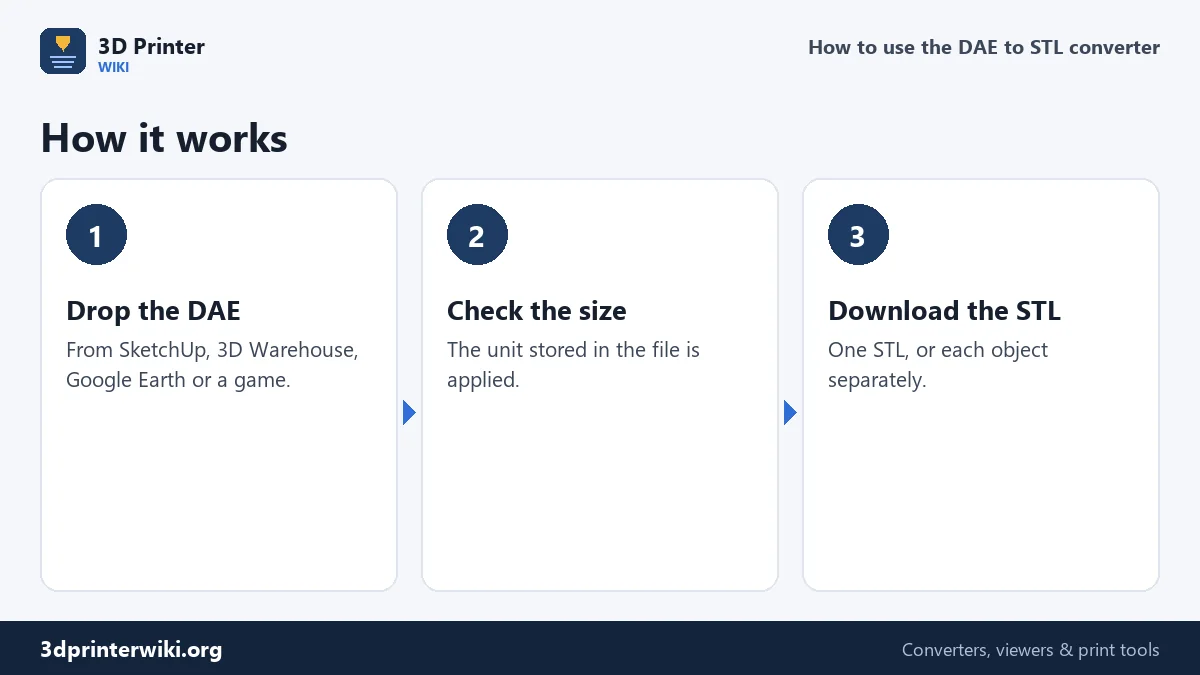
- Drop the .dae file on the box.
- Check the size and look of the model. The unit stored in the file is applied automatically, so a model drawn in inches shows in millimetres.
- Choose what to save. One STL with everything, or tick Save each part as its own STL to get every object in its own file.
- Download the STL and open it in your slicer.
Units in a Collada file
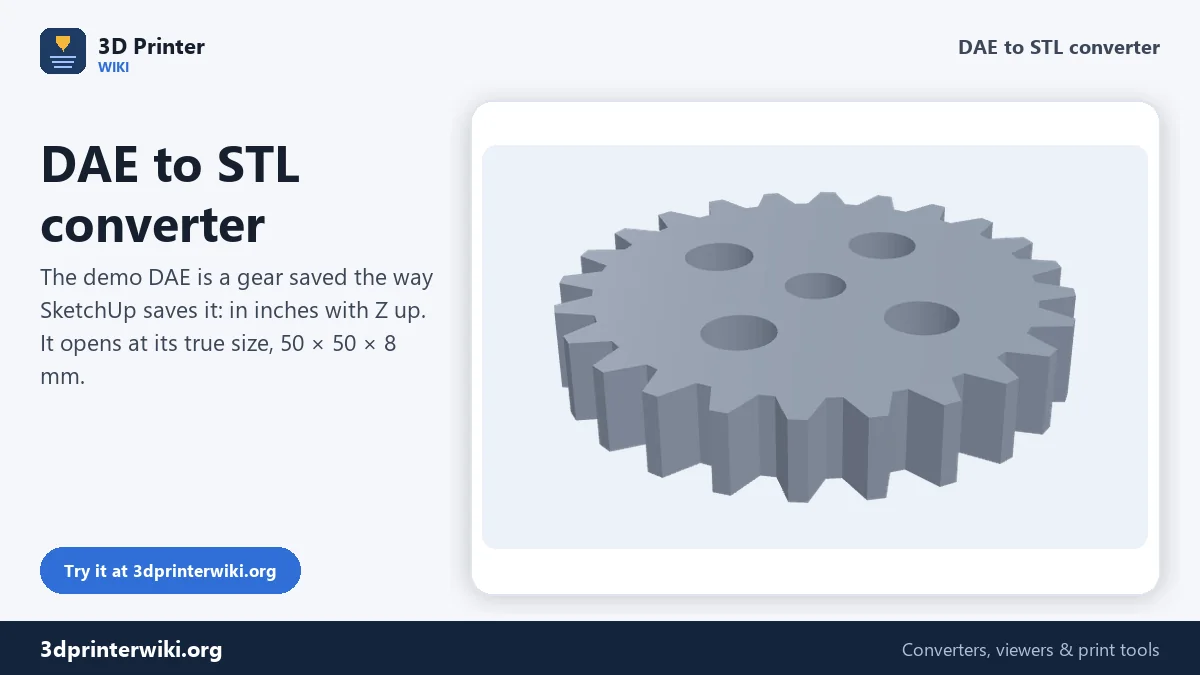
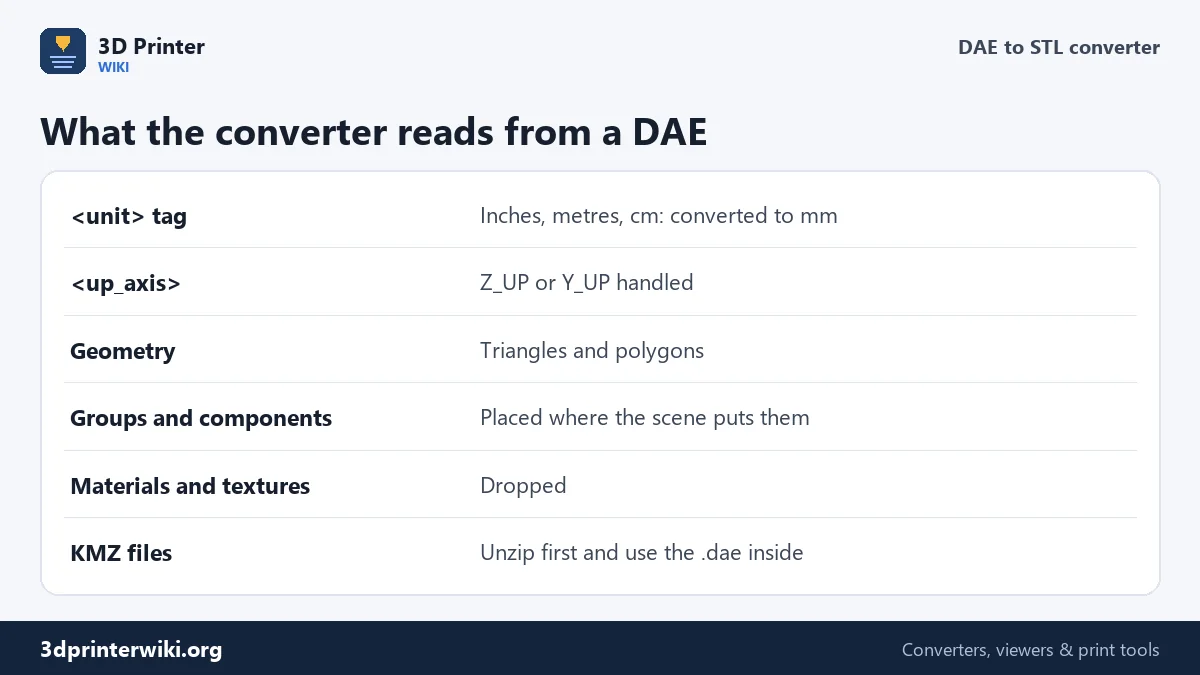
Unlike STL, a Collada file records its unit. In the file's header there is a line such as <unit meter="0.0254" name="inch"/>, which says that every number is in inches. SketchUp writes exactly that by default. The converter reads the tag and converts to millimetres. The demo file on this page is a gear stored in inches, 1.97 inches across, and opens at 50 × 50 × 8 mm.
The same goes for the up axis. SketchUp writes Z_UP, many game tools Y_UP; both are handled. If a file has a wrong or missing unit tag, set Source units and Up axis by hand under More options.
From SketchUp to the printer
SketchUp is popular for 3D printing because it is easy to learn, but SketchUp models are made of faces, not solids, and that causes most print problems. Check these before you export:
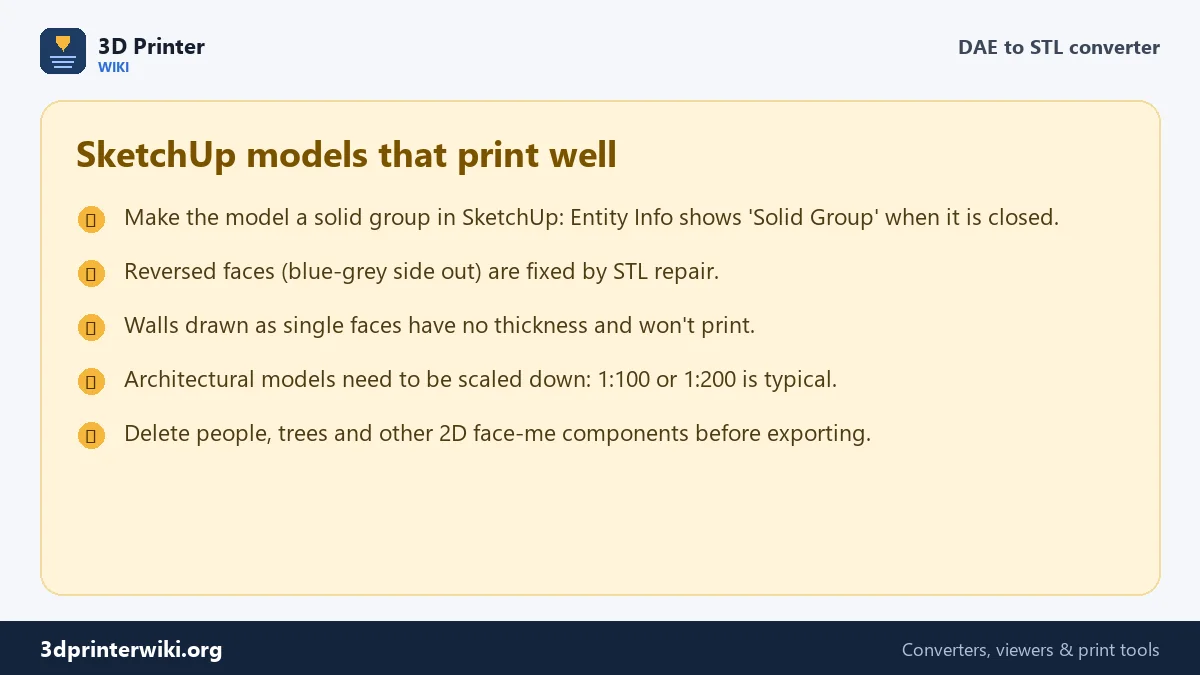
- Make it a solid. Group the model and look at Entity Info. If it says "Solid Group", every edge is shared by exactly two faces and the model is closed. If not, there are holes or stray faces inside.
- Front faces out. SketchUp shows the back of a face in blue-grey. Faces with the blue-grey side outwards are reversed and confuse slicers. Right-click → Reverse Faces in SketchUp, or let the STL repair tool fix their direction.
- Give walls thickness. A wall drawn as one face has zero thickness and can't be printed. Use Push/Pull to make it at least 1 to 2 mm thick at print size.
- Scale for the printer. A house modelled full size is metres across. Scale it down (1:100, 1:200) with the STL scaler, and check that walls and railings stay thick enough.
Google Earth and 3D Warehouse KMZ files
Models from Google Earth, and some 3D Warehouse downloads, come as .kmz files. A KMZ is a zip archive with a .kml file and one or more .dae models inside. Rename the .kmz to .zip, open it, and drop the .dae from the models folder here. If you have the model open in SketchUp, SketchUp Pro and the web version of SketchUp can also export STL directly, which skips Collada altogether.
What is left out
STL stores only shape. Materials, textures, cameras, lights and animations in the Collada file are dropped. Each separate geometry in the DAE becomes a part, so you can still split them up, or save a 3MF to keep them as separately coloured parts for a multi-colour print.
Checking the result in your slicer
A DAE that looked fine in SketchUp can still give a slicer trouble. After converting, open the STL in your slicer and look at three things before printing:
- Warnings. Bambu Studio, OrcaSlicer, PrusaSlicer and Cura warn about open edges or non-manifold geometry. A few are usually harmless; hundreds mean the model needs repair first.
- The layer preview. Scroll through the layers. Missing walls, floors that print as thin lines, or gaps where solid parts should be point to faces with no thickness or reversed faces.
- Thin features. Railings, window frames and antennas thinner than about 0.8 mm at print size, two lines of a 0.4 mm nozzle, are often skipped by the slicer. Thicken them in SketchUp or print the model bigger.
Collada files from games and animation tools can also hold a skeleton and an animation. The converter applies the pose at the start of the animation, like the FBX converter does, and Pose under More options switches to the middle of the animation or the rest pose.
DAE to STL questions
How do I convert DAE to STL?
Drop the DAE on this page, check the preview and size, and press Download STL.
What is a DAE file?
A Collada file: an XML 3D format used by SketchUp, Google Earth and many game and animation tools.
Why is my SketchUp model the wrong size?
SketchUp works in inches. This converter reads the unit from the file and converts it to millimetres; if a file has no unit, set Source units yourself.
Can I convert a KMZ file to STL?
Rename the KMZ to .zip, extract it, and convert the .dae file inside.
Why does my SketchUp model print with holes?
It isn't a closed solid. Make it a solid group in SketchUp, or run the STL through STL repair.
Is DAE the same as Collada?
Yes. .dae is the file extension of Collada, an XML 3D format maintained by the Khronos Group.
Does the converter read animated DAE files?
Yes. The model is posed at the first frame of its animation; choose the middle or the rest pose under More options.
Can I open a DAE file without SketchUp?
Yes. Drop it on this page to see it in 3D at its real size, then save it as STL or 3MF.
More 3D printing tools
Updated November 2026 · How these tools work