STL measure tool
Measure a hole, a wall or the distance between two features of a 3D model.
More options
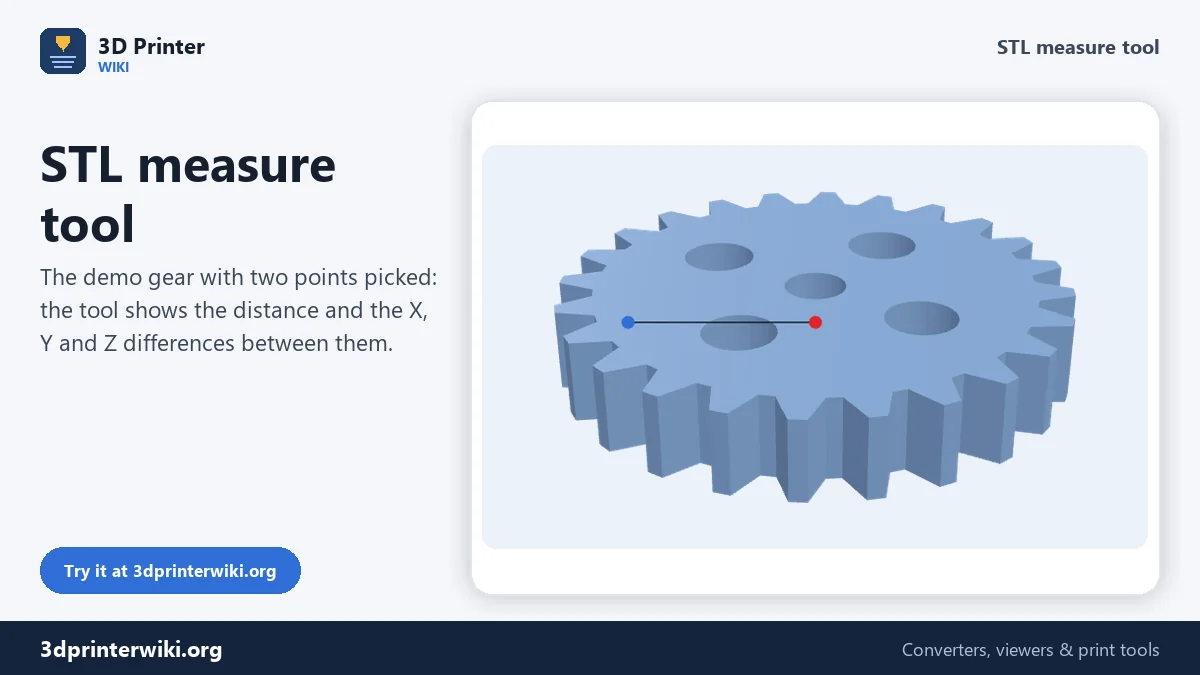
Will this part fit? Is that hole 5 mm or 6 mm? How thick is the wall? Most viewers only tell you a model's overall size, and slicers have only basic measuring. This STL measure tool lets you click any two points on a 3D model and gives you the exact distance between them, together with the differences along X, Y and Z, so you can measure holes, walls, slots, spacing between features and anything else you need before printing or designing a matching part.
How to measure an STL
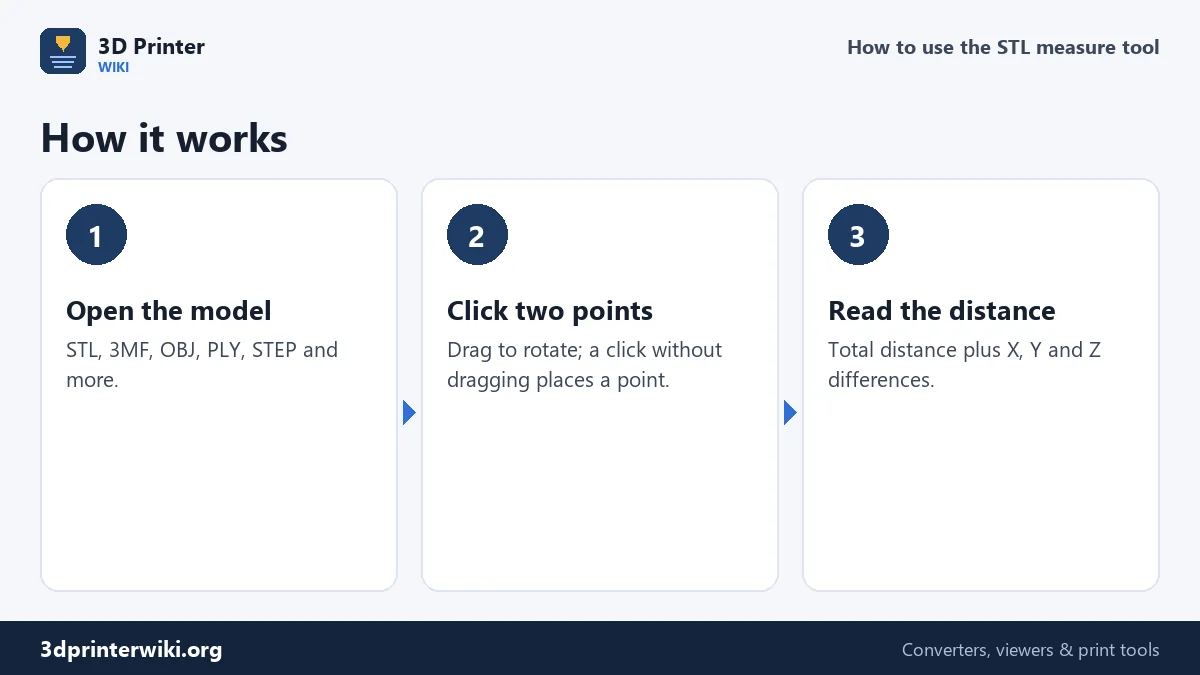
- Open the model on the box. STL, 3MF, OBJ, PLY, GLB, FBX and STEP files all work.
- Check the overall size in the line under the model, to make sure the units are right.
- Click the first point on the model. Drag to rotate and scroll to zoom as usual: only a click without dragging places a point.
- Click the second point. The distance appears straight away, with the X, Y and Z differences and both points' coordinates.
- Click again to start a new measurement, or use Clear the points.
Snapping to corners
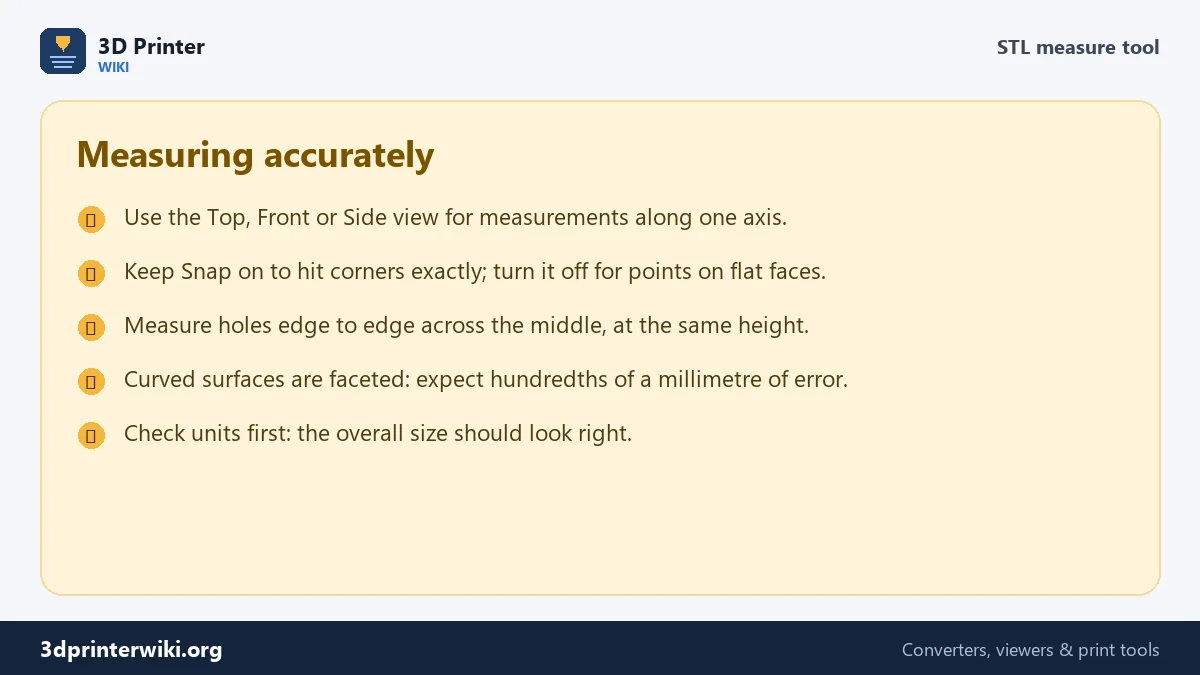
A click lands on the surface of the model under the mouse pointer. With Snap to the nearest corner on, the default, the point jumps to the nearest corner of the triangle you clicked, if that corner is close by: within 3% of the model's size. Corners are where edges meet, such as the edge of a hole, the top of a wall or the tip of a tooth, so snapping makes measurements between features exact and repeatable. Turn snapping off when you want a point in the middle of a flat face, for example to measure the height of a step from a face rather than from its edge.
What to measure and how
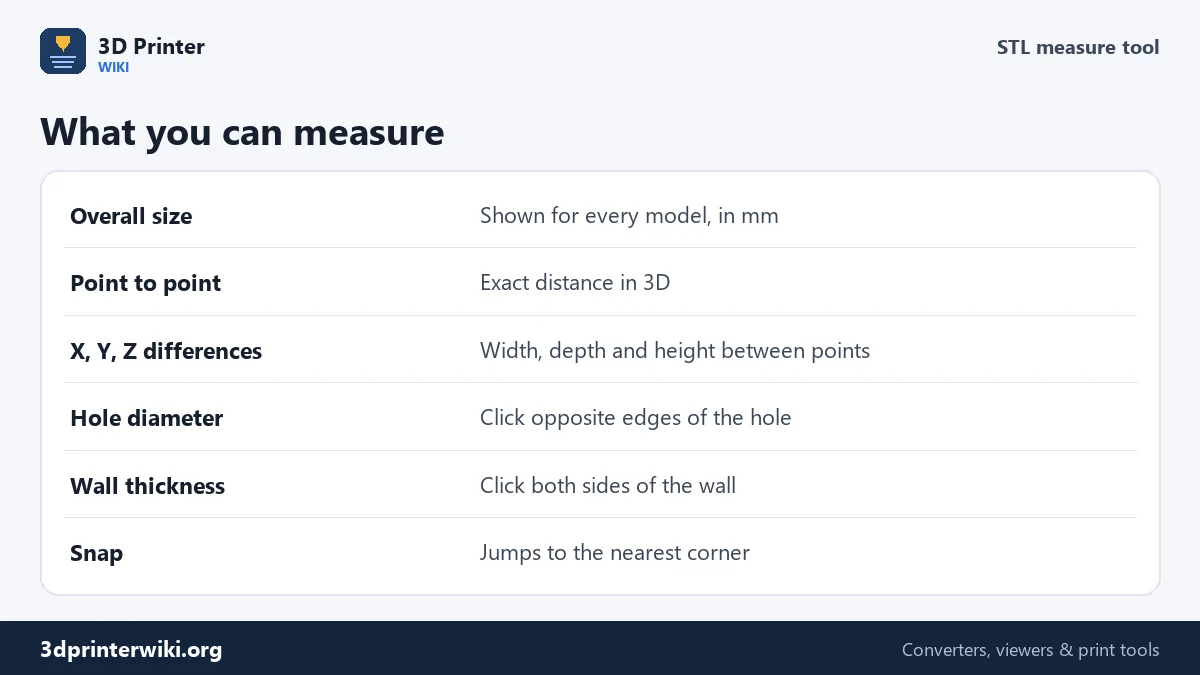
- Hole diameter. Switch to the top view, then click two opposite edges of the hole across its middle. On the demo gear, the centre bore measures 6 mm and the four lightening holes 7 mm.
- Wall thickness. Rotate so you can see both sides of the wall near an edge and click one corner on each side. The X or Y difference is the thickness if the wall runs along an axis.
- Spacing between features. Click the centre or the edge of each feature; the X and Y differences tell you how far apart they are in each direction.
- Heights. Use the front view and look at the Z difference between a point on the top and one on the bottom.
How accurate is it?
The distance is computed exactly from the points' coordinates in the file. Two things limit what that means. First, curved surfaces in an STL are made of flat triangles, so a hole is really a polygon; measuring corner to corner across it gives the polygon's size, which for a finely meshed hole differs from the true circle by hundredths of a millimetre. Second, the result is only as right as the model's units: if the overall size is 25.4 times too small, the file is in inches, and every measurement is too. Set Source units under More options, or fix the file with the STL scaler.
More tools for checking a model
The STL viewer shows whether a model is a closed solid and lists its parts. The STL volume calculator gives volume, weight and filament use. For a cross-section at a certain height, with every hole in its exact position, use STL to SVG or STL to DXF and measure in a drawing program.
Using the views for clean measurements
Measuring in a tilted 3D view works, but it is easy to click a point slightly behind or in front of the one you meant. The standard views remove that problem. In the Top view you look straight down the Z axis, so two clicks give you a clean X and Y distance, ideal for hole patterns, slot widths and the outline of a part. The Front view looks along Y and is best for heights and X positions; the Side view looks along X. Zoom in with the mouse wheel before clicking small features: the closer you are, the more precisely the click lands. The coordinates of both points are shown with every measurement, so you can also read positions directly, for example to find where a hole sits relative to the corner of a bracket.
Measurements are made on the model as it is shown, centred on the build plate. Absolute coordinates therefore depend on that placement, while distances and differences between points do not.
STL measuring questions
How do I measure distances in an STL file?
Open the STL here and click two points on the model. The distance and the X, Y and Z differences appear at once.
How do I measure a hole in an STL?
In the top view, click two opposite edges of the hole across its middle. Snapping places the points on the hole's edge.
Can I measure STEP files too?
Yes. STEP, IGES, 3MF, OBJ, PLY and GLB files open in the same tool.
Why does my measurement look 25.4 times too small?
The file was made in inches. Set Source units to Inches under More options.
How do I find the overall size of an STL?
It's shown under the model as soon as the file opens: width, depth and height in millimetres.
Can I measure on a phone?
Yes. Tap to place points and use one finger to rotate. Zoom in with two fingers for small features.
Does measuring change my file?
No. The tool only reads the model; nothing is saved or changed.
More 3D printing tools
Updated November 2026 · How these tools work