SVG to G-code converter
Turn a vector drawing into G-code for a laser engraver or a pen plotter.
More options
Many diode lasers, CNC engravers, pen plotters and drag-knife cutters run GRBL or Marlin and take plain G-code. Dedicated software like LightBurn does far more, but sometimes you just need to turn an SVG into a file you can stream to the machine, test a new machine, or work on a computer where the usual software isn't installed. This SVG to G-code converter reads your SVG at its real size, orders the paths to keep travel short, and writes G-code for a laser (M3 or M4 with a power value) or for a pen plotter (pen up and down with Z).
How to convert SVG to G-code
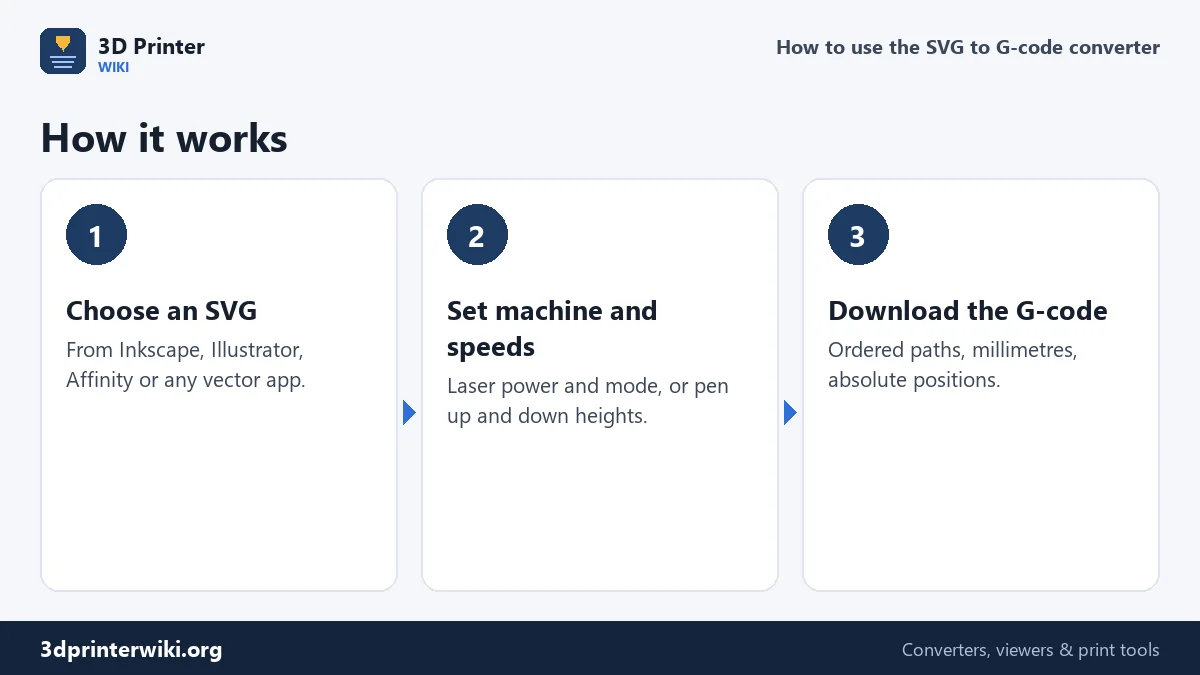
- Choose an SVG. Text should be converted to paths in your vector program first (Inkscape: Path → Object to Path).
- Check the preview and size line: the drawing size in millimetres, the number of paths, the cutting and travel distances and a time estimate.
- Set the machine under More options: laser or pen plotter, cutting and travel speed, laser power and mode, passes, or pen up and down heights.
- Scale or move the drawing if needed with Scale to width and the X and Y offsets.
- Download the G-code and send it with your usual sender, such as LaserGRBL, Universal G-code Sender, CNCjs or OctoPrint. The file is plain text, so you can check it in any editor.
Real size from the SVG
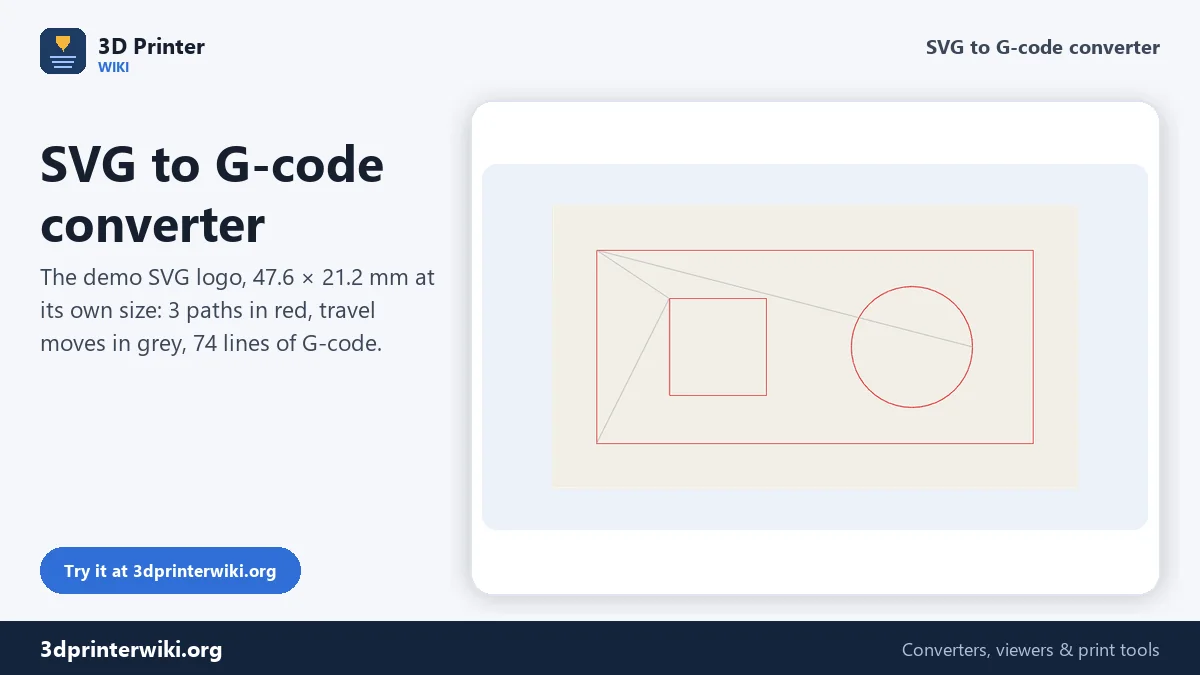
An SVG knows how big it is: its width and height attributes give the size in millimetres, inches or pixels, and the viewBox maps those to the drawing's coordinates. The converter reads both, so a drawing made 50 mm wide in Inkscape comes out 50 mm wide in the G-code. When no unit is given, 96 pixels per inch is assumed, the standard for SVG. The demo logo on this page is 47.6 × 21.2 mm at its own size. To make it a different size, enter a width under Scale to width; the height follows. The drawing is placed with its bottom-left corner at the origin, plus the offsets you set, with Y pointing up as on most machines.
Paths and their order
Every shape in the SVG, including lines, curves, rectangles, circles and the outlines of filled shapes, is turned into a series of short straight moves. Curves are split finely, so circles look round at normal laser speeds. The paths are then sorted: after finishing a path, the converter picks the nearest unfinished path, and starts it from whichever end is closer. That keeps travel moves short, which saves time and, on a pen plotter, avoids long dry moves across the paper. The size line shows the cutting distance and the travel distance; the demo needs 0.22 m of cutting and only 0.07 m of travel.
Laser settings
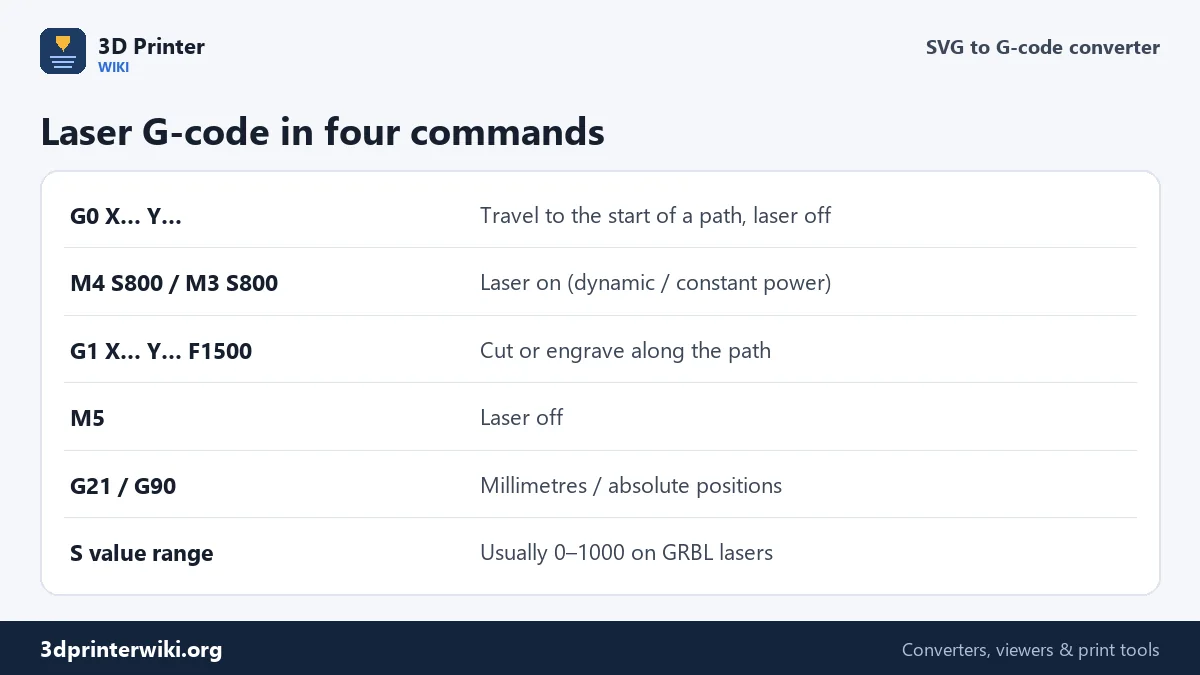
For lasers, every path starts with a travel move with the laser off, then switches the laser on with M4 S… or M3 S…, cuts along the path with G1, and switches it off with M5. The S value is the power; on most GRBL lasers it runs from 0 to 1000, matching the $30 setting. M4, dynamic power, lowers the power automatically while the machine slows down in corners, so corners don't burn darker than straight lines; use it for engraving and cutting on GRBL machines. M3 keeps the power constant, which some firmware and older machines need. Passes repeats every path, for cutting thicker material in several runs.
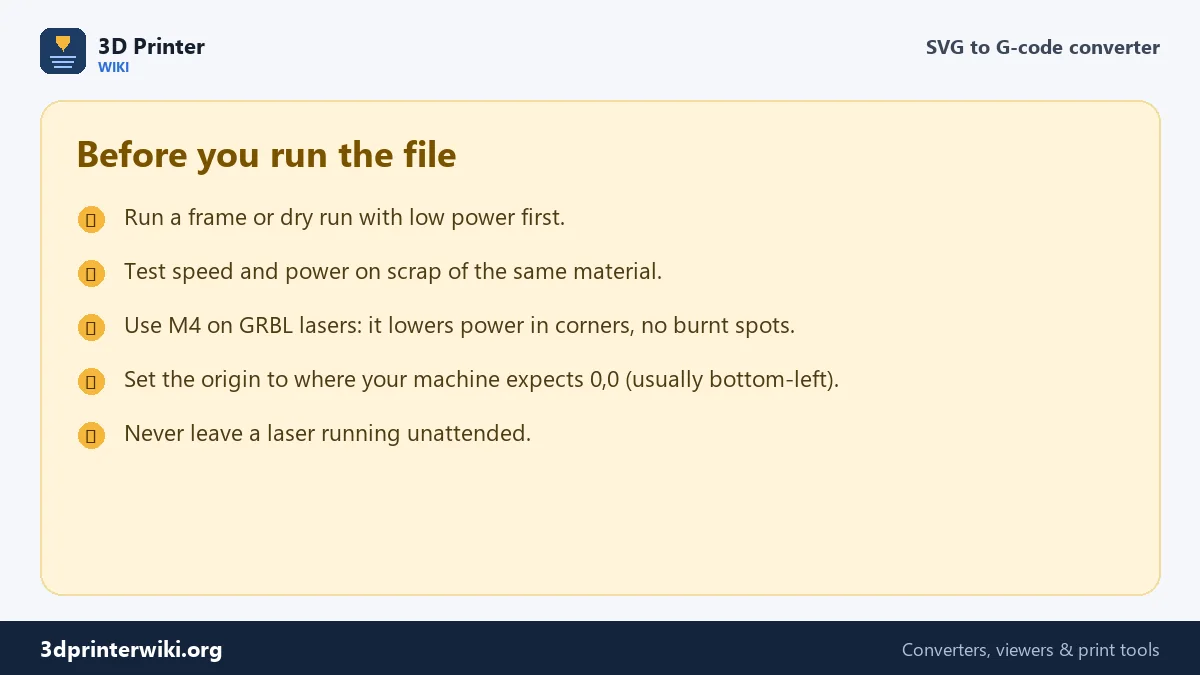
Speed and power depend completely on your laser and material, so start with a test on scrap: a few small squares at different speeds and powers tell you more than any table.
Pen plotters and drag knives
Choose Pen plotter and the converter lifts and lowers the tool with Z moves instead of switching a laser: G0 Z5 to lift, G1 Z0 to lower, with the heights you set. This works for pen plotters with a Z axis, 3D printers fitted with a pen holder, and vinyl or drag-knife cutters that cut by lowering a blade. Plotters that lift the pen with a servo often use M3 and M5 for that instead; for those, choose the laser mode and set the power to the servo value your machine expects.
SVG to G-code questions
How do I convert an SVG to G-code?
Choose the SVG on this page, set your machine and speeds under More options, and press Download G-code.
Can I use this G-code with a GRBL laser?
Yes. The file uses G0, G1, M3 or M4, M5, G21 and G90, which GRBL understands. Use M4 for dynamic power.
Why is my text missing?
Text in an SVG is stored as characters, not shapes. Convert text to paths in your vector program first.
What S value should I use for laser power?
It depends on your laser and material. On most GRBL lasers S1000 is full power; test on scrap first.
Does it engrave filled areas?
It follows the outlines of shapes. Filling areas with lines (hatching or raster engraving) needs laser software such as LightBurn or LaserGRBL.
Can I use it for a pen plotter?
Yes. Choose Pen plotter and set the pen up and down heights.
What size will the drawing be?
Its size in the SVG: the width and height attributes in mm or inches, or 96 pixels per inch if no unit is given. Use Scale to width to change it.
More 3D printing tools
Updated November 2026 · How these tools work