STEP to GLB converter
Show a CAD part on a website, in AR or in a 3D viewer, without exporting meshes from CAD by hand.
Same file as: · · · ·
More options
Engineering teams design in CAD and share STEP files, but the web runs on glTF. Product pages with a 3D view, online configurators, assembly instructions, AR previews, documentation portals and trade-show screens all want a GLB. Getting one usually means exporting a mesh from CAD, importing it into Blender, fixing its scale and orientation, and exporting again. This STEP to GLB converter does all of that in one step: it reads the CAD geometry with a CAD kernel, meshes every body finely, keeps body colours, and writes a compact GLB in metres with Y up, as glTF expects.
How to convert STEP to GLB
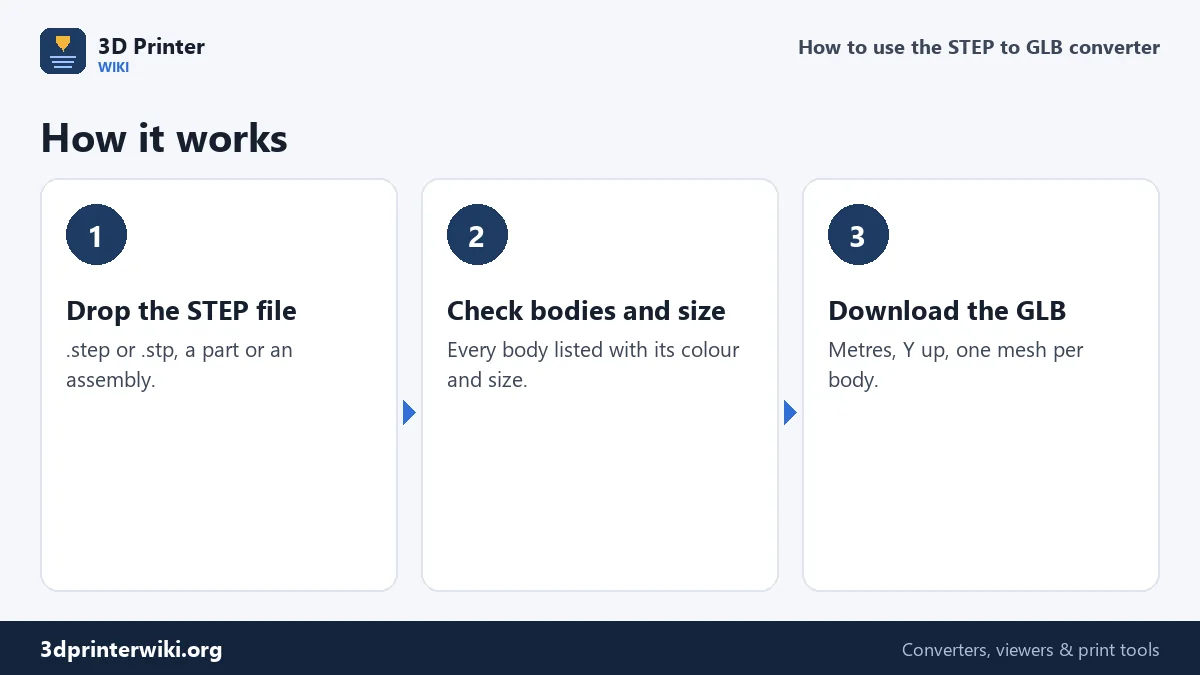
- Drop the .step or .stp file on the box. The CAD reader loads the first time, about 7.6 MB, and then stays in the browser's cache.
- Check the preview. The overall size is shown in millimetres from the STEP's own unit, with the triangle count and number of bodies.
- Press Download GLB. Each body becomes its own mesh in the GLB, with its colour from CAD.
From exact surfaces to triangles
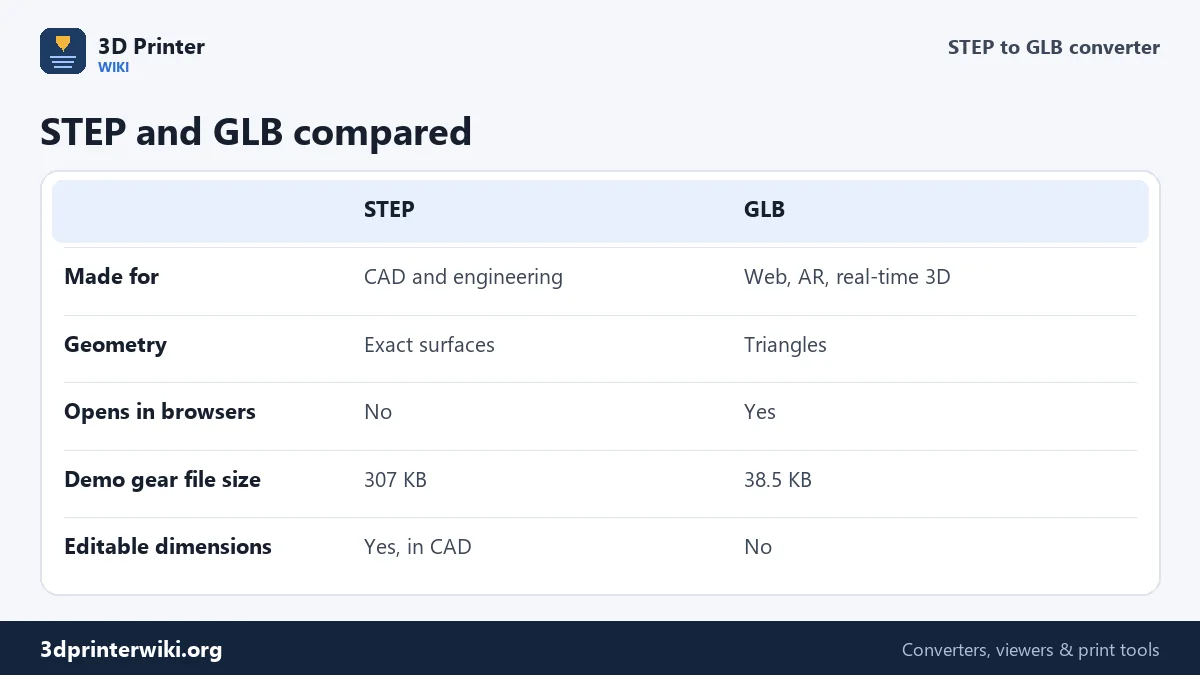
A STEP file stores exact geometry: a hole is a cylinder with a radius, a fillet a torus or a spline. Web viewers and AR engines only draw triangles, so the surfaces have to be split into flat facets. The converter keeps every facet within 0.05% of the part's overall size of the true surface and limits the angle between neighbouring facets to about 14°, so every full circle gets at least 25 segments. Then it computes shading normals: where faces meet at more than 30°, the edge stays crisp; below that, the surface is shaded smoothly. Holes and fillets look round, while chamfers and machined edges stay sharp, which is what makes CAD parts look like real objects instead of faceted meshes.
File size
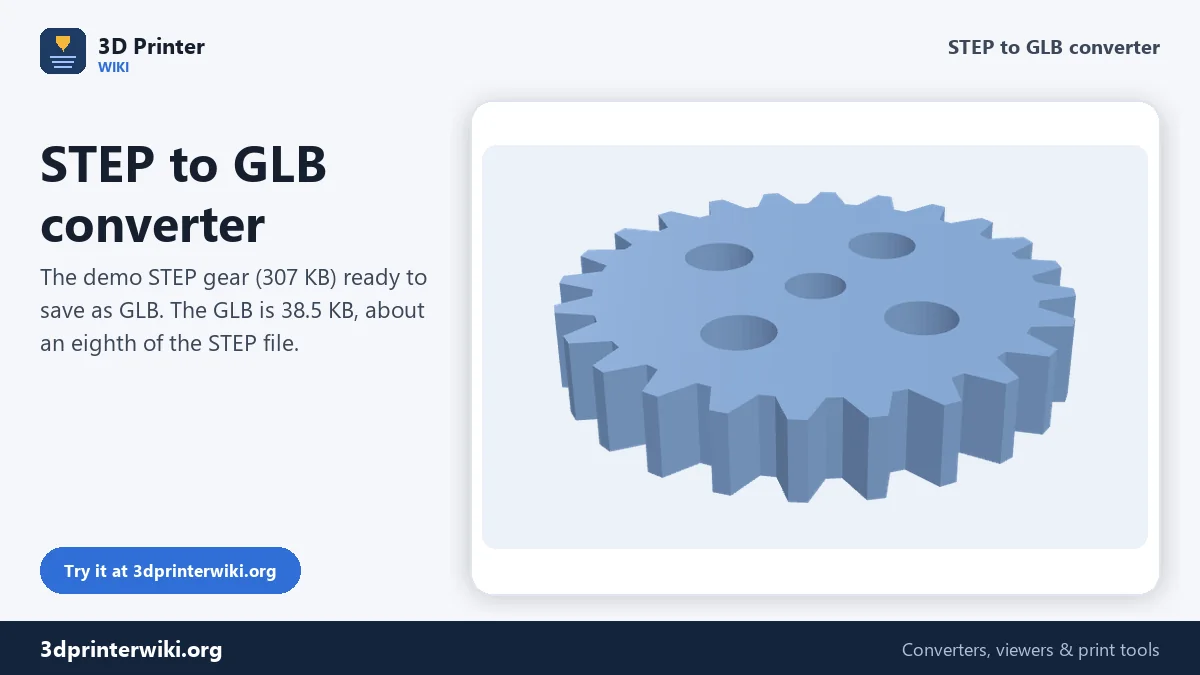
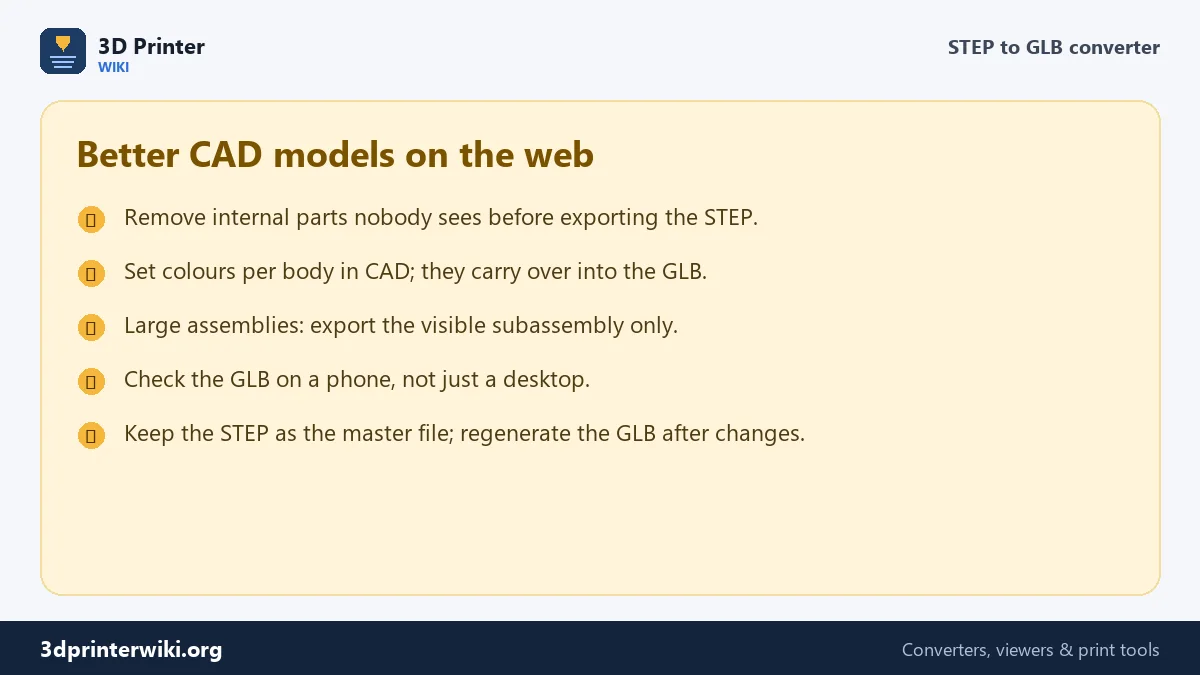
STEP files are large because they are verbose text describing every point, edge and face. A GLB is binary and stores each corner once. The demo gear on this page is 307 KB as STEP and 38.5 KB as GLB, about an eighth. For web pages, keeping models under a few megabytes matters, because visitors on phones load them over mobile data. If an assembly is large, export only the parts people need to see: internal screws, bearings and wiring often make up most of the triangles and are never visible.
Colours and bodies
CAD programs can store a colour per body or per face in the STEP file. The converter reads body colours and writes each body as a separate mesh with a matching material, so a housing in grey, buttons in black and a label area in white come out that way in the GLB. Body names from the STEP are kept as mesh names, which is useful when a configurator or a viewer needs to show, hide or recolour parts. Materials are plain colours; textures, decals and appearance libraries from CAD are not part of STEP files, so add them later in Blender if you need photo-realistic surfaces.
Units and orientation
STEP files record their unit, usually millimetres, sometimes inches. glTF always uses metres, so the converter divides millimetres by 1,000. A 50 mm gear becomes 0.05 m, which is how big it shows up in AR on a real desk. CAD uses Z as up, glTF uses Y, so the model is turned to stand the way it stood in CAD. The model is also centred and placed with its lowest point at zero, which AR viewers treat as the floor.
Using the GLB
For a product page, Google's model-viewer web component shows a GLB with one tag and adds an AR button on phones. three.js and Babylon.js load GLB directly for custom viewers and configurators. Most e-commerce platforms with 3D support, presentation tools and documentation systems accept GLB uploads. For printing the part instead, use the STEP to STL converter; for rendering in Blender, STEP to OBJ.
STEP to GLB questions
How do I convert STEP to GLB?
Drop the STEP or STP file on this page and press Download GLB.
Can I show a STEP file on a website?
Not directly; browsers can't read STEP. Convert it to GLB here and embed the GLB with model-viewer or three.js.
Are CAD colours kept?
Yes. Body colours from the STEP file become materials in the GLB, one mesh per body.
How big will the GLB be?
Usually much smaller than the STEP. The demo gear went from 307 KB to 38.5 KB.
Can I convert STEP to glTF?
The download is GLB, the single-file binary form of glTF 2.0, which every glTF viewer reads.
Does the GLB keep the exact dimensions?
The size is exact, converted to metres. Curved surfaces become fine facets, so the GLB is for viewing, not for measuring or machining.
Can I use the GLB in Unity or Unreal?
Yes, with their glTF importers. Unity and Unreal both read GLB files at real size in metres.
Why does my GLB look faceted?
It shouldn't: curved surfaces get smooth normals. If a viewer ignores normals, try another viewer, or increase detail in CAD before exporting the STEP.
Can I convert a STEP assembly to one GLB?
Yes. All bodies go into one GLB as separate meshes with their names and colours, placed as in the assembly.
Does it work on a phone?
Yes for typical parts. Very large assemblies need more memory than most phones have, so use a computer for those.
How do I update the GLB after a design change?
Export a new STEP from CAD and convert it again. Keep the STEP as the master file and treat the GLB as a copy for viewing.
More 3D printing tools
Updated November 2026 · How these tools work