PLY viewer
Look at a PLY scan from your phone or scanner and check it before printing.
Save as: · · ·
More options
3D scanners and scanning apps often save their results as PLY, but few computers can open one without installing MeshLab or a scanner's own software. This PLY viewer opens the scan in your browser. Rotate it, look at it from every side, check its size and how many triangles it has, and see whether it is a closed solid or still has holes, before you send it to a printer, a print service or a client.
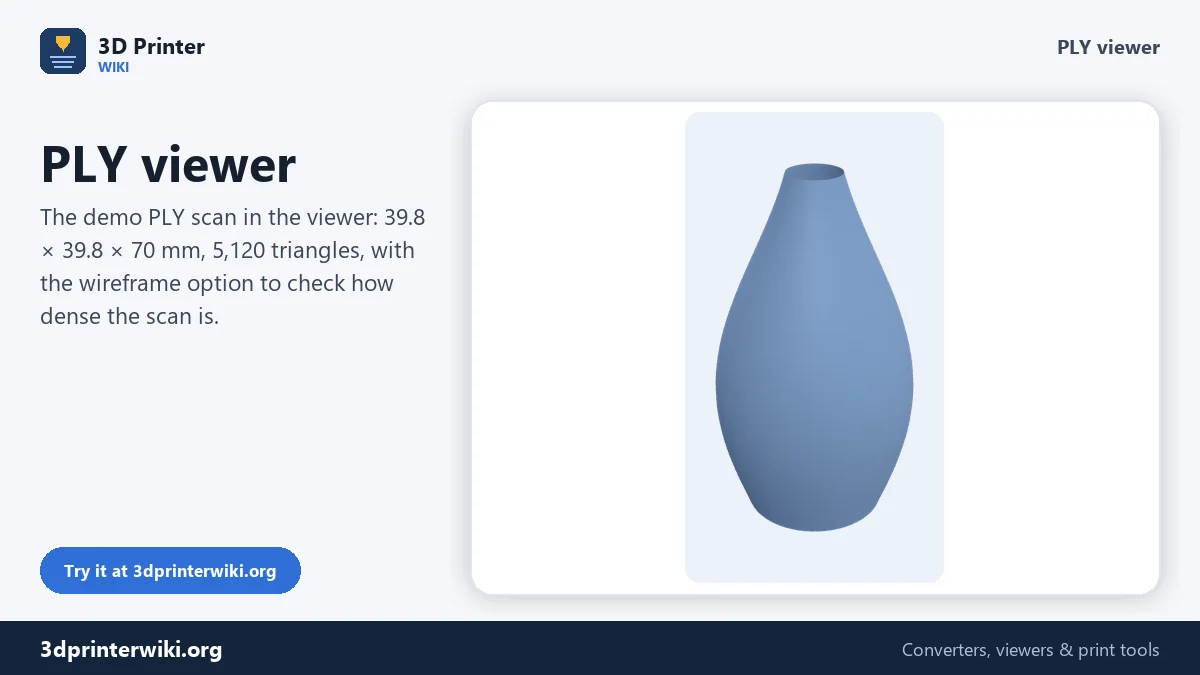
How to view a PLY file
- Drop the .ply file on the box. Binary and ASCII PLY files both work.
- Look around. Drag to rotate and scroll to zoom. The Top, Front and Side buttons give straight views, useful for spotting a scanned floor or a missing bottom.
- Read the numbers under the model: size in millimetres, triangle count, volume, and whether the scan is a closed solid or has open edges.
- Show the wireframe under More options to see how dense the mesh is in different areas.
- Save it as STL, 3MF or OBJ, or as a PNG picture of the current view.
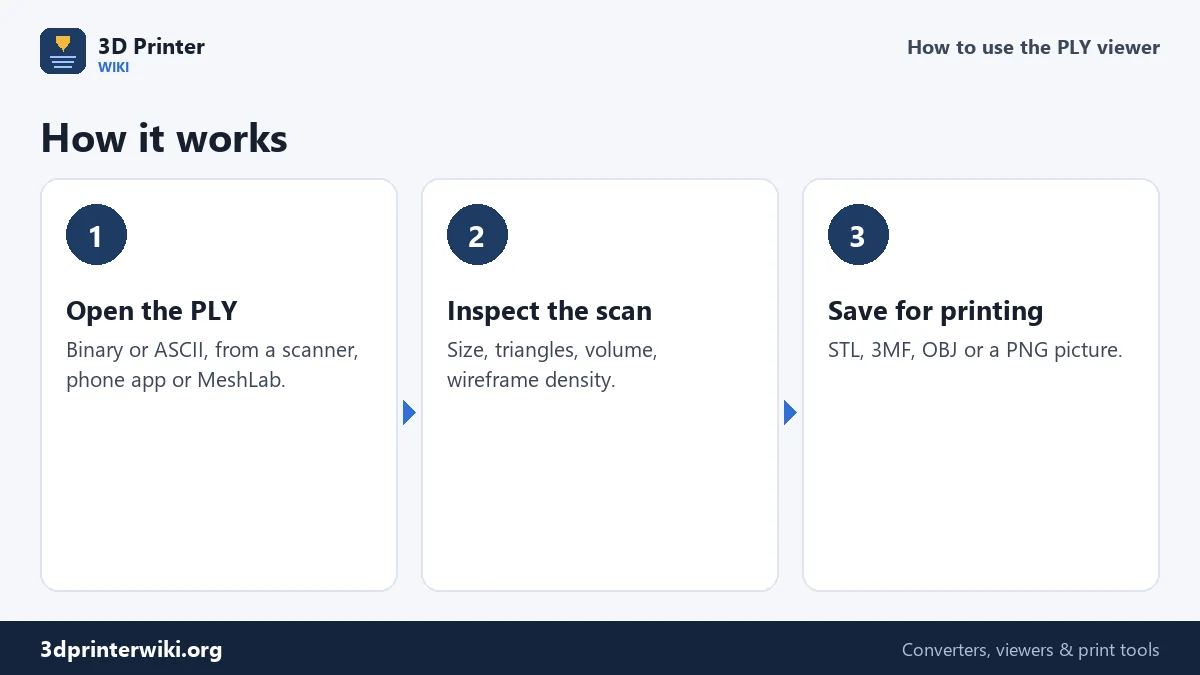
Five things to check in a scan
1. Is it a mesh at all? A PLY can contain only points, with no surface joining them. If so, the viewer tells you instead of showing an empty scene. Point clouds need a meshing step in the scanner software or MeshLab before they can be printed or converted.
2. Is the size right? Structured-light and laser scanners measure in real millimetres, so a 70 mm vase shows as 70 mm. Photogrammetry and some phone apps don't know the real scale, and the numbers can be anything. Compare the size shown with the real object.
3. Is it closed? After loading, the viewer checks every edge of the mesh. "Closed solid" means every edge is shared by two triangles: the scan is watertight and the volume shown is exact. A number of open edges means there are holes, almost always on the side the object stood on, and the volume is only approximate. Look at the bottom view to find the opening.
4. What else got scanned? Bits of the turntable, the table, a hand or a support often come along. They're easy to see from the front and side views.
5. How heavy is it? A raw scan can have millions of triangles. That's fine for archiving, but 100,000 to 300,000 is plenty for printing, and much easier to handle.
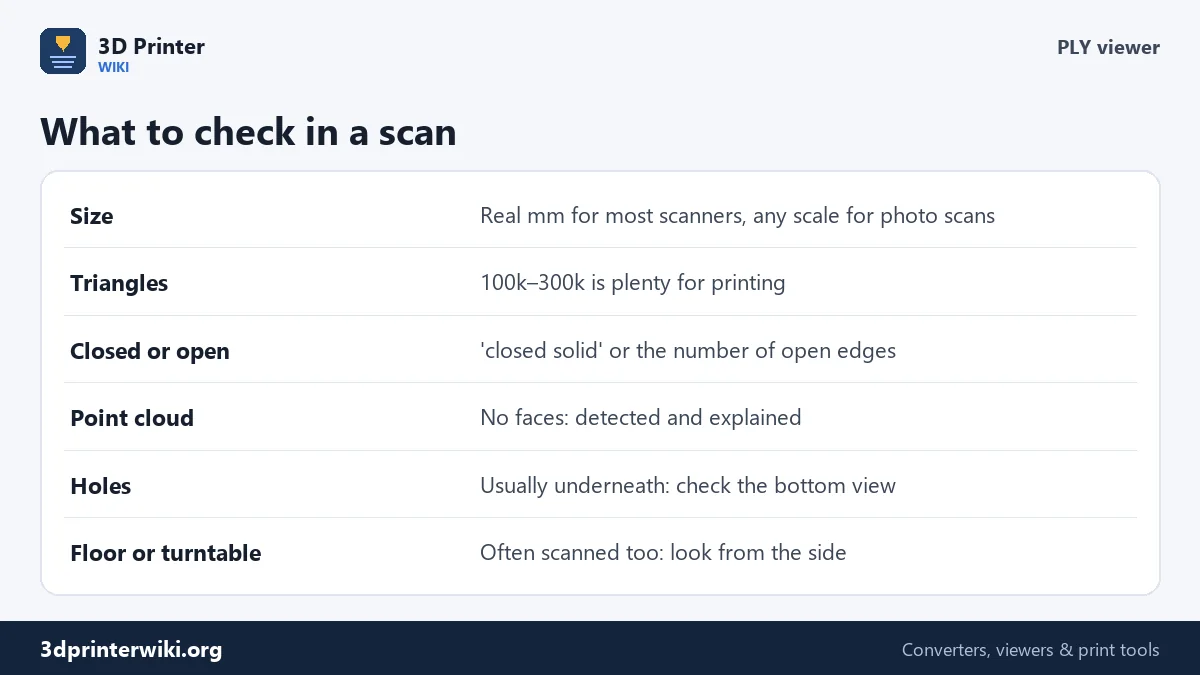
Using the wireframe
With Show wireframe ticked, every triangle edge is drawn. Most scanners adapt the mesh: small triangles where there was detail, big ones on flat or smooth areas. Large triangles on a part that should be detailed, like a face or lettering, mean the scanner didn't capture it well, and a better scan will do more than any cleanup. Very even, tiny triangles everywhere usually mean the mesh can be reduced a lot without visible loss.
From viewing to printing
Once you know what the scan needs, the other tools on this site do the work:
- PLY to STL converts the scan for your slicer.
- STL repair fills the holes and fixes flipped faces.
- STL splitter separates loose bits like the turntable from the object.
- Reduce STL file size brings a heavy scan down to a printable triangle count.
- STL scaler sets the real size of a photo scan.
Reading a PLY header
You can tell a lot about a PLY file before opening it in any 3D program. Open it in a text editor; even a binary PLY starts with a few lines of plain text that end with end_header. The line format says whether the data is ascii, binary_little_endian or binary_big_endian. Each element line gives a count: element vertex 2562 means 2,562 points, element face 5120 means 5,120 faces. If there is no face line, or it says 0, the file is a point cloud. The property lines list what is stored per point, such as x, y and z, red, green and blue colours, normals, or a confidence value from the scanner.
ASCII PLY files are easy to read but several times bigger than binary ones and slower to open. If your software can save binary PLY, use it for big scans. Some programs also add a comment TextureFile line pointing to a texture image; the viewer ignores it and shows the shape.
PLY viewer questions
How do I open a PLY file online?
Drop it on this page. The scan appears in 3D with its size and triangle count.
Why does my PLY show nothing?
It is probably a point cloud with no faces. Create a mesh in your scanner software or in MeshLab first.
Why are the scan colours missing?
The viewer shows the shape only. Colours stay in the PLY file but are not drawn.
How do I know if my scan has holes?
The line under the model says "closed solid" or gives the number of open edges. Open edges mean holes; look at the bottom view to find them.
Can I convert the PLY to STL here?
Yes. Use Save as STL under the viewer, or the PLY to STL converter.
What is the difference between PLY and STL?
PLY can store colours, normals and points without faces, and shares corners between triangles. STL stores only triangles and is what every slicer reads.
Can a PLY file have a texture?
Some programs save a texture image next to the PLY and refer to it in a comment line. The viewer shows the shape only.
Can I measure a scan in the PLY viewer?
You get the overall size in millimetres and the volume. For distances between points, use MeshLab or CloudCompare.
More 3D printing tools
Updated November 2026 · How these tools work