G-code viewer
Drop a .gcode file and scrub through the layers to see exactly what the printer will do.
More options
Your slicer shows you a preview, but once a file is on an SD card, a USB stick or a print server, it is just a long text file of moves. This G-code viewer reads that file and draws every extrusion line in 3D, coloured by layer. Drag the slider to watch the print build up layer by layer, show the travel moves, and read the filament use and print time from the file, all without opening the slicer that made it.
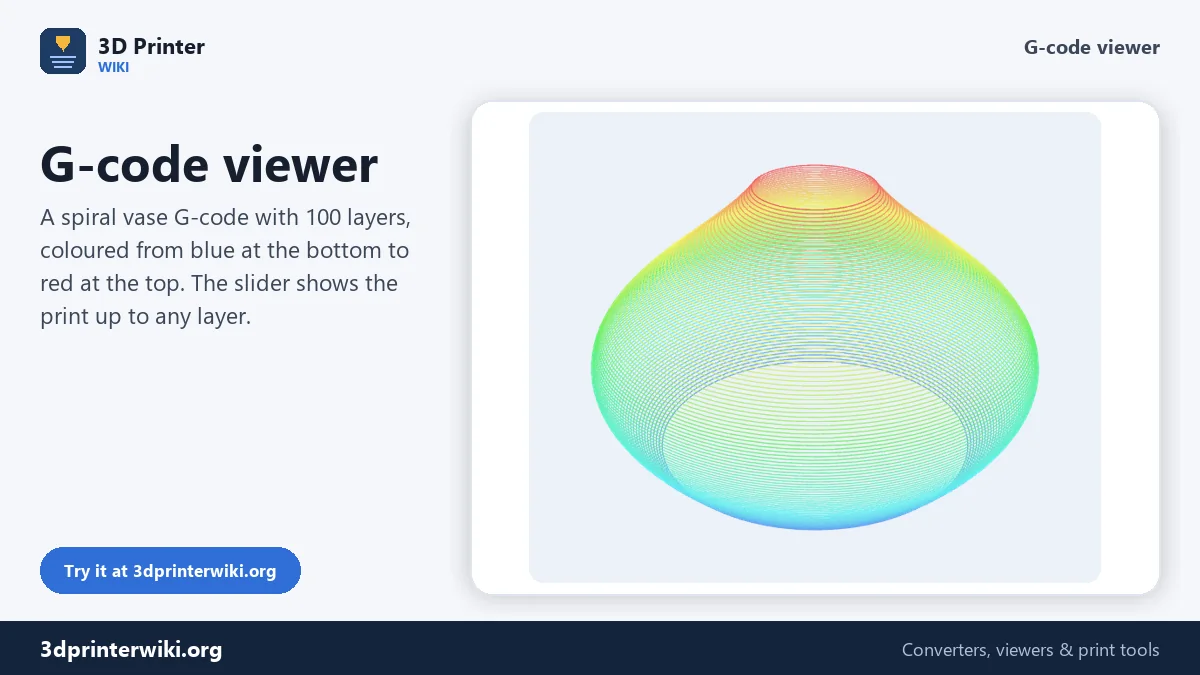
How to view a G-code file
- Drop the .gcode file (also .gco, .g and .nc). Files from Bambu Studio, OrcaSlicer, PrusaSlicer, SuperSlicer, Cura, Simplify3D and IdeaMaker work.
- Move the layer slider to see the print up to any layer. The label shows the layer number and its height.
- Read the summary under the view: number of layers, filament length and weight, print time and the number of extrusion moves.
Tick Show travel moves under More options to see the moves where the nozzle crosses without extruding. If your filament is not 1.75 mm PLA, set its diameter and density there to get the right weight.
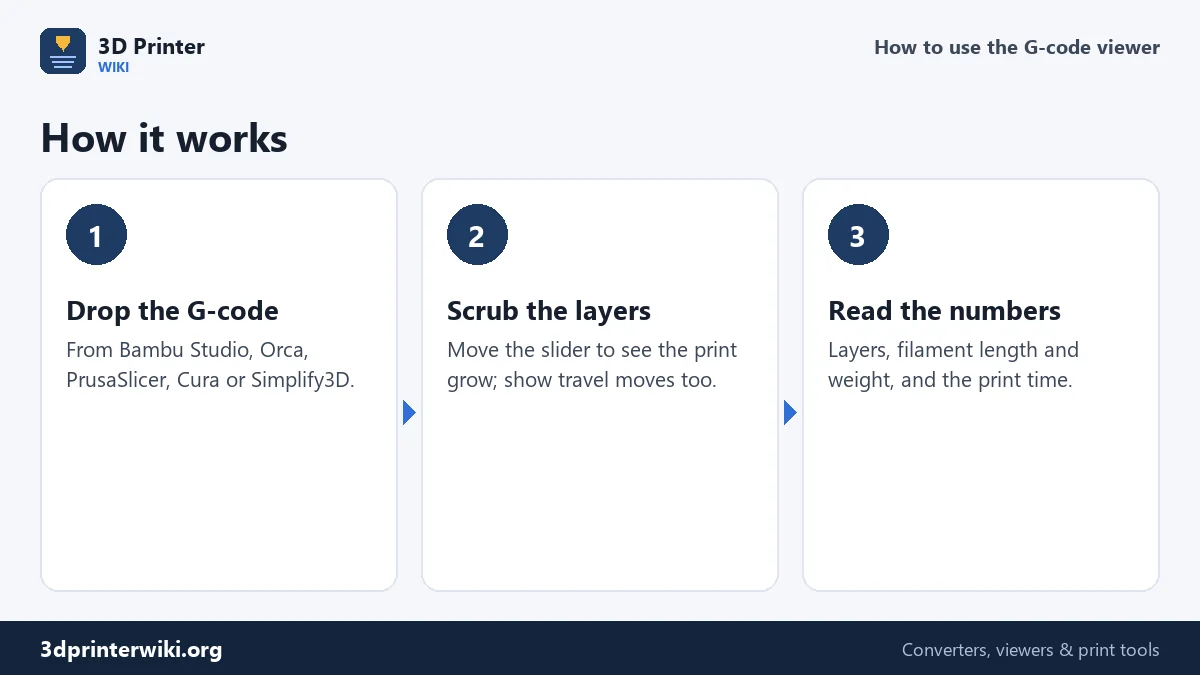
What the viewer reads from your G-code
G-code is simple: each line is a command. G0 and G1 are moves; when a G1 line also changes the E value (the extruder), plastic comes out, so the viewer draws it as a printed line. Moves without extrusion are travel. G90 and G91 switch between absolute and relative positions, M82 and M83 do the same for the extruder, and G92 E0 resets the extruder count, which slicers do at every layer. The viewer follows all of these so lines land where the printer would put them.
Lines are grouped into layers by their Z height. Each layer gets its own colour along a blue-to-red gradient, which makes it easy to see the first layer, the middle and the top at a glance.
Print time and filament
Most slicers write their own estimates into comments at the top or bottom of the file: Cura writes ;TIME:, PrusaSlicer and Bambu Studio write "estimated printing time", and many write the filament used in grams or metres. When those comments exist, the viewer shows the slicer's numbers, marked "(slicer)". When they do not, it adds up the extrusion (E) values for the filament length and estimates time from the move lengths and feed rates. That estimate ignores acceleration, so real prints take somewhat longer; treat it as a minimum.
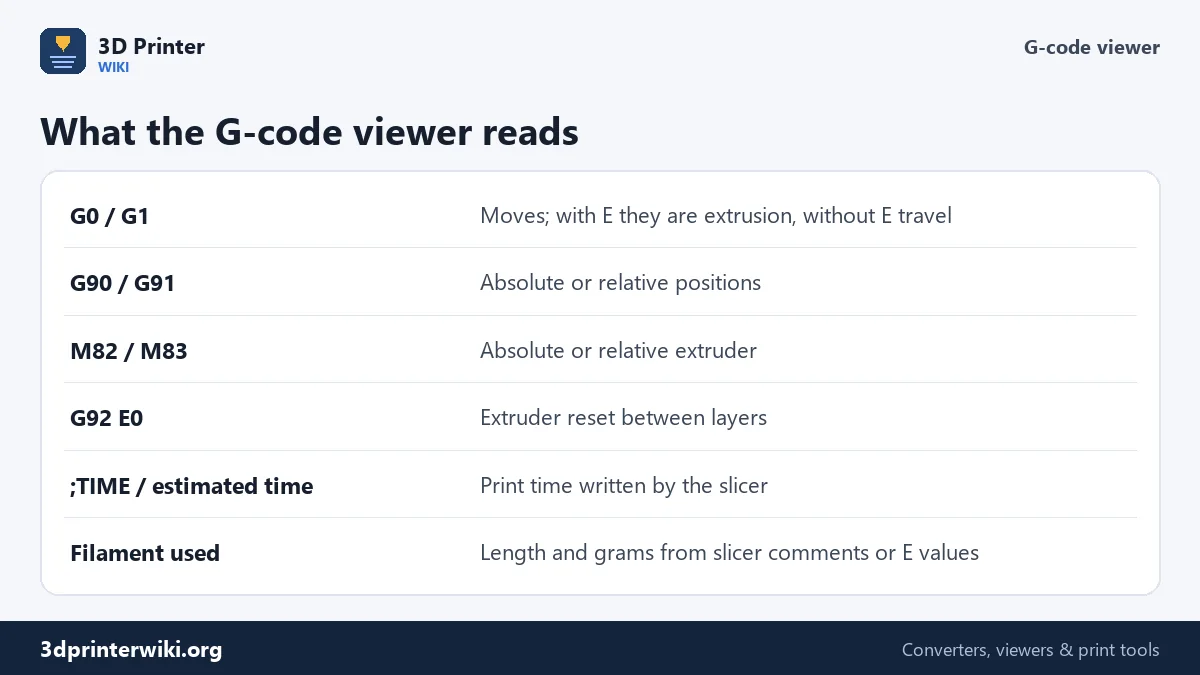
Why check G-code before printing?
- Files from someone else. A friend sliced a part for your printer, or you downloaded a ready-to-print G-code. See what it really does before you trust it.
- Find a layer. Need to pause at the layer where a magnet goes in, or change colour where the text starts? Scrub to it and read the layer number and height.
- Check the first layer and supports without re-slicing on a different computer.
- Plan filament. Before a 12-hour print, check the grams against what is left on the spool. The filament calculator converts the length to weight for any material.
Limits
The viewer draws filament printer G-code (Marlin, Klipper, RepRapFirmware and Bambu style). It does not run arc commands (G2/G3) as curves; arcs are drawn as straight lines between their end points, so files with arc fitting turned on show some straight shortcuts. Binary G-code (.bgcode) from PrusaSlicer is a compressed format; export plain G-code instead by turning off "Binary G-code" in PrusaSlicer's printer settings. Resin printer files (.ctb, .pwmx) are images, not G-code, and are not supported.
What the colours mean
Extrusion moves are coloured by layer, from blue at the first layer through green and yellow to red at the last. That makes the height of any line easy to judge from any angle, and it shows at a glance where a print changes shape. Travel moves, where the nozzle moves without extruding, are drawn as faint grey lines when Show travel moves is ticked. A lot of grey criss-crossing between parts means many travel moves, and more chances for stringing; your slicer's settings for combing, avoiding crossing walls and retraction affect it.
Binary G-code (.bgcode) from newer Prusa printers can't be read; the viewer tells you how to export plain G-code from PrusaSlicer instead.
Turning G-code back into a model
Lost the original STL and only have the G-code? The G-code to STL converter rebuilds a solid model from the extruded lines, so you can slice it again, scale it or share it.
G-code viewer questions
How do I view a G-code file online?
Drop it on this page. It is drawn in 3D with a layer slider, the filament used and the print time.
Can I open Bambu Lab G-code?
Yes. Plain .gcode from Bambu Studio works. A .gcode.3mf from Bambu is a project zip: export plain G-code from Bambu Studio to view it here.
Can the viewer estimate print time?
It shows the slicer's estimate when the file contains one. Otherwise it estimates from move lengths and speeds, which is a lower bound because acceleration is ignored.
Is my G-code uploaded?
No. The file is read on your device and nothing is sent anywhere.
Why are some curves drawn as straight lines?
The file uses G2/G3 arc moves. The viewer draws them as straight segments between their ends.
What do the colours in the G-code viewer mean?
Each layer has its own colour, from blue at the bottom to red at the top. Grey lines are travel moves.
Can I open .bgcode files?
No. In PrusaSlicer, turn off Binary G-code in the printer settings and export again.
More 3D printing tools
Updated November 2026 · How these tools work