FBX to STL converter
Print a character or prop from a game, Mixamo or an animation file. The FBX is posed, scaled and turned upright for your slicer.
Same file as: · · · ·
More options
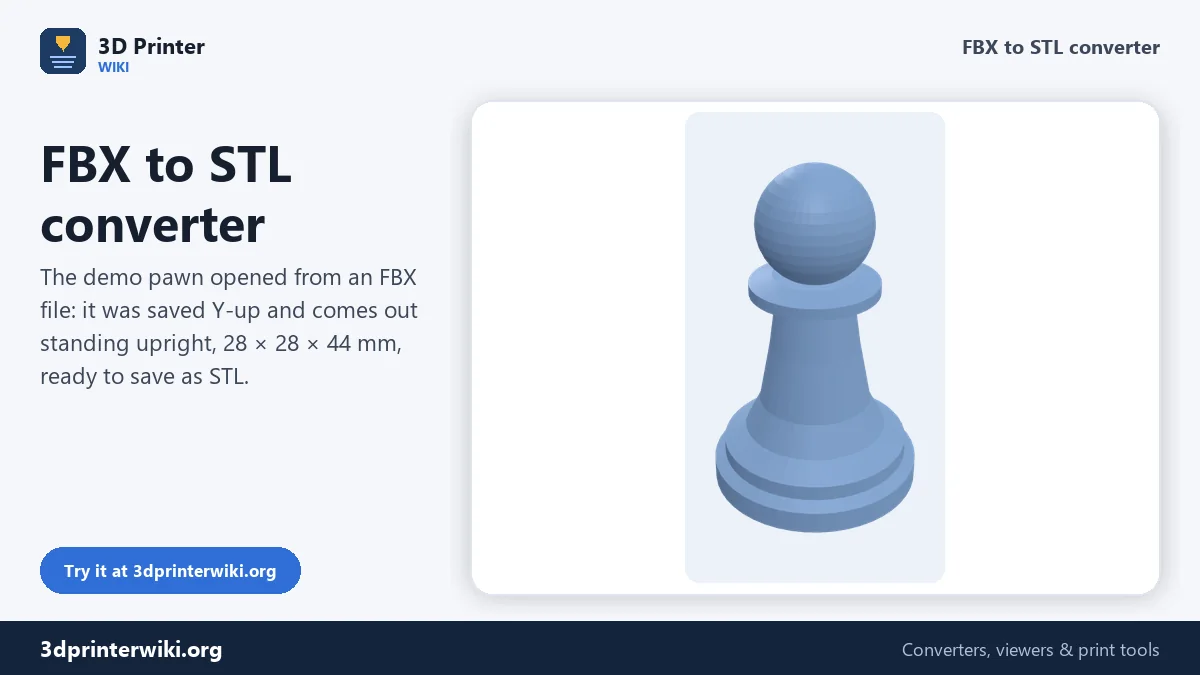
FBX is the file format of games and animation. Characters from Mixamo, props bought on asset stores, models exported from Maya, 3ds Max, Cinema 4D or Unity: most of them come as FBX. Slicers don't read it. This converter opens the FBX, applies its bones and animation pose, turns it upright, shows you the size, and saves an STL you can slice. If the file holds several meshes, such as a body, hair, eyes and a sword, you can save them as one STL or each one separately.
How to convert FBX to STL
- Drop the FBX file on the box above. Binary FBX files from version 6.4 and ASCII FBX files from version 7.0 (FBX 2010) onwards are read.
- Check the 3D preview. The model is turned upright and placed on the build plate. The line under it gives the size in millimetres, the triangle count and, for animated files, which animation it found.
- Fix the size if needed. If the size looks wrong, change Source units under More options (see below).
- Download the STL. Tick Save each part as its own STL to get every mesh in its own file inside a zip.
Characters, bones and poses
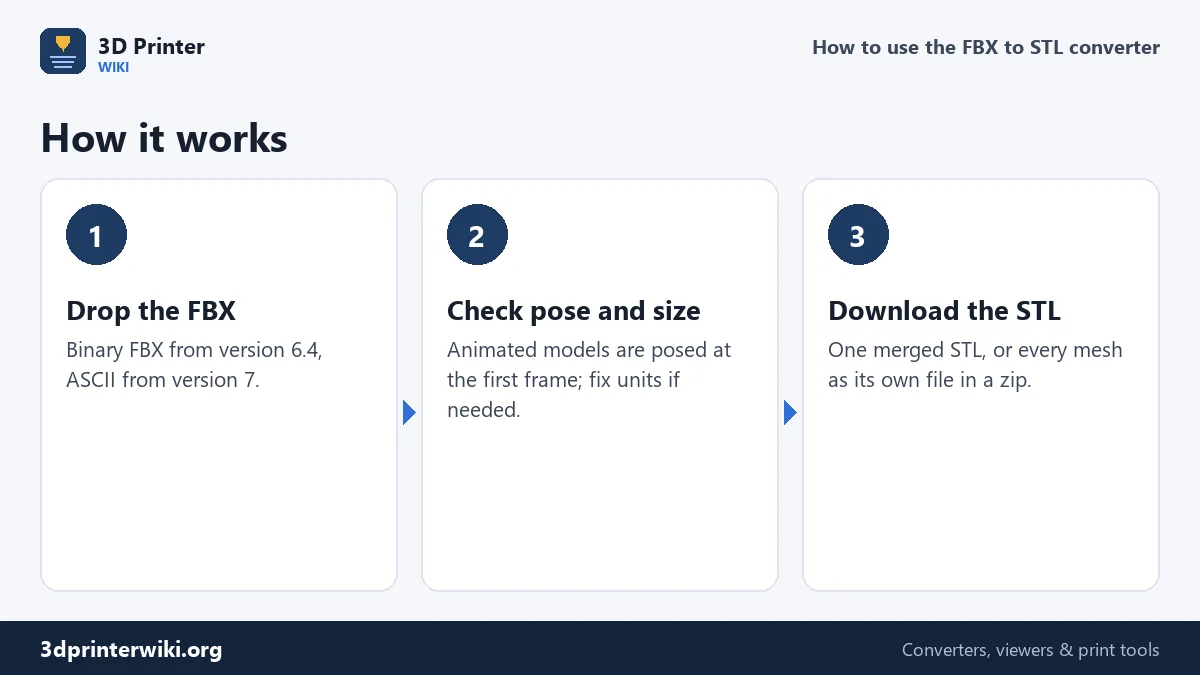
An animated character in an FBX has two parts: the mesh, stored in its rest pose (usually a T-pose or A-pose with the arms out), and a skeleton that bends the mesh into the pose you see in the animation. Many simple converters save only the rest pose, so you get a T-posed figure even though you downloaded a running or waving animation. This converter applies the skeleton. By default it poses the model at the first frame of the animation. Under More options, Pose can switch to the middle of the animation, which is often the most dynamic moment of a jump or attack, or back to the rest pose stored in the file.
So the workflow for a Mixamo character is simple. Pick the character and the animation or pose you want in Mixamo, download it as FBX with skin, and drop the file here. If the first frame isn't the moment you want, try the middle, or trim the animation in Mixamo so it starts where you want it.
Units: why game models come out tiny or huge
FBX files do have a unit setting, but programs disagree about it. Maya, 3ds Max and Mixamo usually work in centimetres, Blender in metres, game engines in whatever the project uses. STL has no units at all; every slicer reads its numbers as millimetres.
The converter reads the FBX numbers as millimetres, because that gives a printable size for most models. A person modelled 180 cm tall comes out 180 mm tall, already a nice figure size. The size line under the preview tells you what you got. If the model is only a few millimetres, choose Centimetres or Metres in Source units. If it is metres across, it was modelled very large. Either way you can set an exact height later with the STL scaler. The converter also warns you when a model is below 2 mm or above 1.5 m.
Up axis
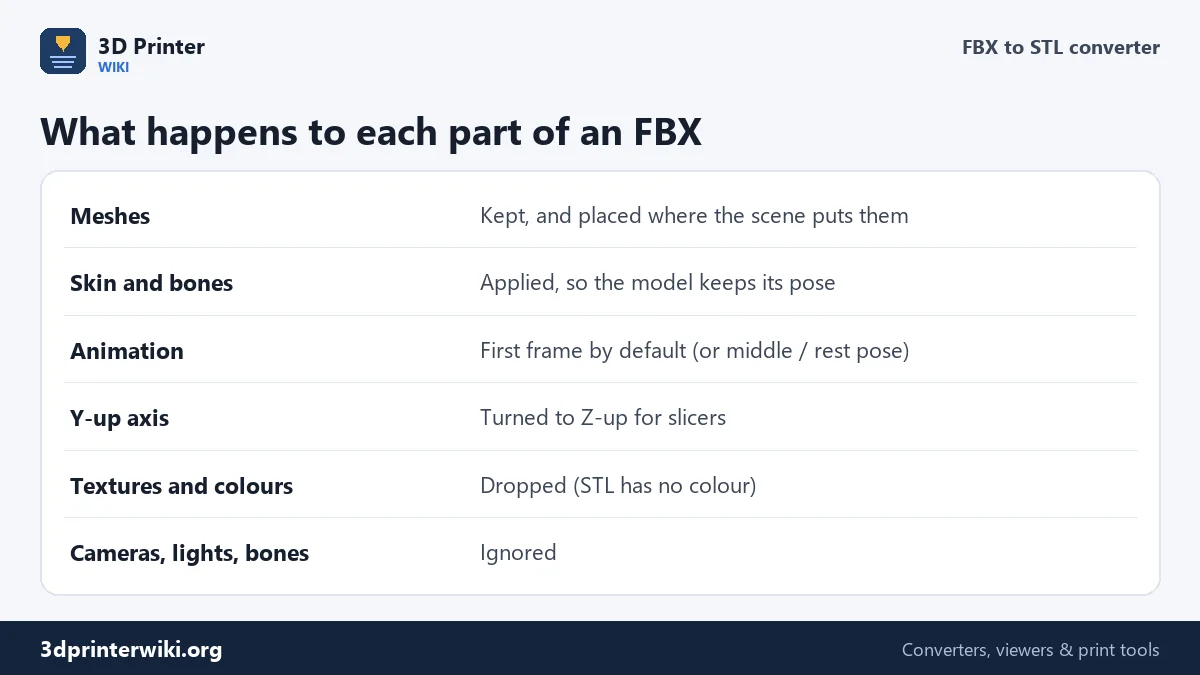
Games, animation tools and the web build their scenes with Y pointing up. 3D printers and CAD use Z up. Read naively, an FBX character lies on its back on the build plate. The converter turns FBX files from Y-up to Z-up automatically. If a model was exported Z-up, for example from a CAD program or with Blender's axis settings changed, choose Z is up in Up axis under More options.
Making a game model printable
Game models are built to look good on screen, not to be solid objects, and that shows up as soon as you slice them. These are the usual problems:
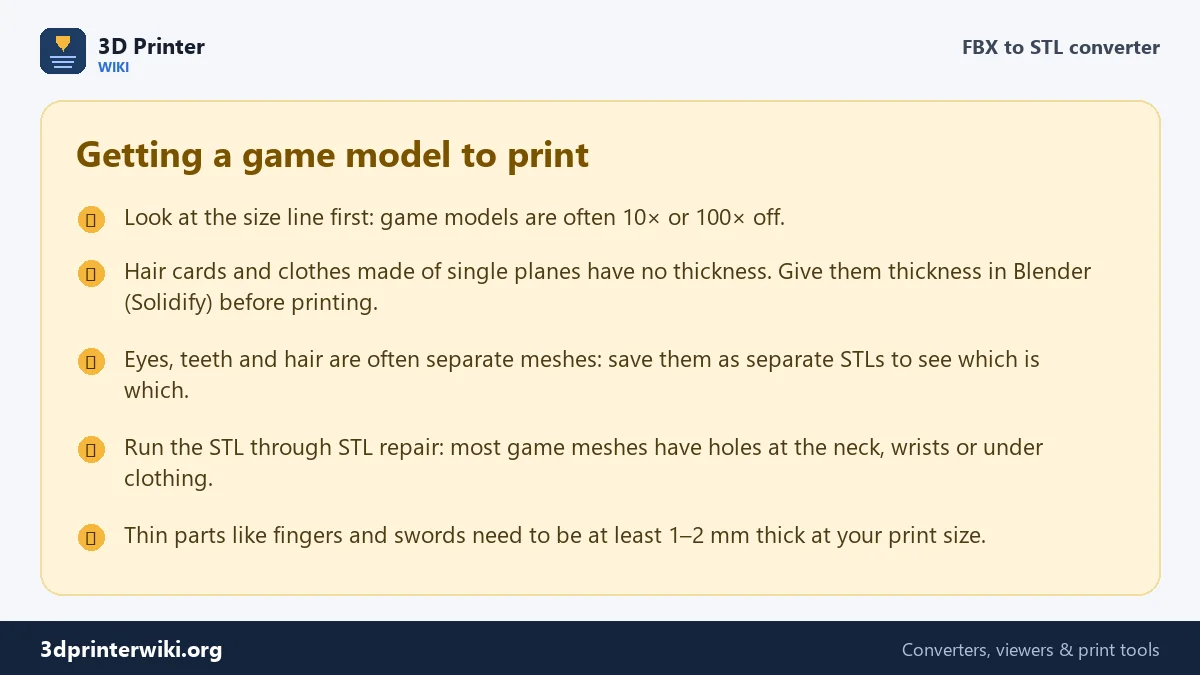
- Holes. Necks, wrists and the inside of clothes are often left open, because the camera never sees them. The STL repair tool closes holes and fixes flipped faces.
- Parts with no thickness. Hair cards, capes, leaves and some clothes are single flat sheets. A slicer can't print a surface with zero thickness. Give them thickness in Blender with the Solidify modifier, or remove them.
- Overlapping pieces. Eyes, teeth and armour often sit inside or through the body as separate meshes. Most slicers handle overlapping shells, but you may want to drop small inner parts. Save each part as its own STL to see what's what.
- Thin details. Fingers, weapons and antennae that look fine in a game are too thin at figure size. At 180 mm tall, a finger may be under 1 mm thick. Print bigger, or thicken those parts.
- Very high or very low detail. Low-poly game models look faceted when printed. Sculpted film models can be millions of triangles; reduce the STL file size if your slicer struggles.
Textures and colour
STL stores only the shape, so textures, vertex colours and materials are dropped. If you want to keep the meshes apart for a multi-colour print, download a 3MF instead (in the Same file as row). Each mesh then becomes its own part you can give a filament in Bambu Studio, OrcaSlicer or PrusaSlicer.
FBX to STL questions
How do I convert FBX to STL?
Drop the FBX on this page, check the preview and size, and press Download STL. Nothing has to be installed.
Why is my Mixamo character in a T-pose?
Most converters save only the rest pose. This one applies the animation, posing the model at the first frame by default. Change Pose under More options to use the middle of the animation.
Why is my FBX model so small after converting?
The file was made in centimetres or metres and STL has no units. Choose the right Source units, or scale the STL to the height you want.
Can I convert FBX to STL in Blender?
Yes: File → Import → FBX, then File → Export → STL. Blender is the tool for fixing thin or open parts, but for a straight conversion this page is quicker.
Are textures kept?
No. STL only stores shape. Save a 3MF to keep the separate meshes as parts for multi-colour printing.
Which FBX versions work?
Binary FBX from version 6.4 and ASCII FBX from version 7.0 (FBX 2010) onwards. Older files have to be saved again as a newer FBX in the program that made them.
More 3D printing tools
Updated November 2026 · How these tools work