OBJ to 3MF converter
Bring an OBJ into your slicer as a 3MF: right size, named parts, smaller file.
Same file as: · · · ·
More options
OBJ is the common export format of 3D art programs, scanners and many model sites, and every slicer can open it, but OBJ has two weaknesses for printing: it has no units, so the slicer has to guess the size, and its objects often arrive merged or unnamed. 3MF, the format Bambu Studio, OrcaSlicer, PrusaSlicer and Cura use for their own projects, fixes both. This OBJ to 3MF converter turns the OBJ upright, lets you set the unit it was made in, keeps every OBJ object as a named part, and writes a 3MF in millimetres that every modern slicer opens at the right size.
How to convert OBJ to 3MF
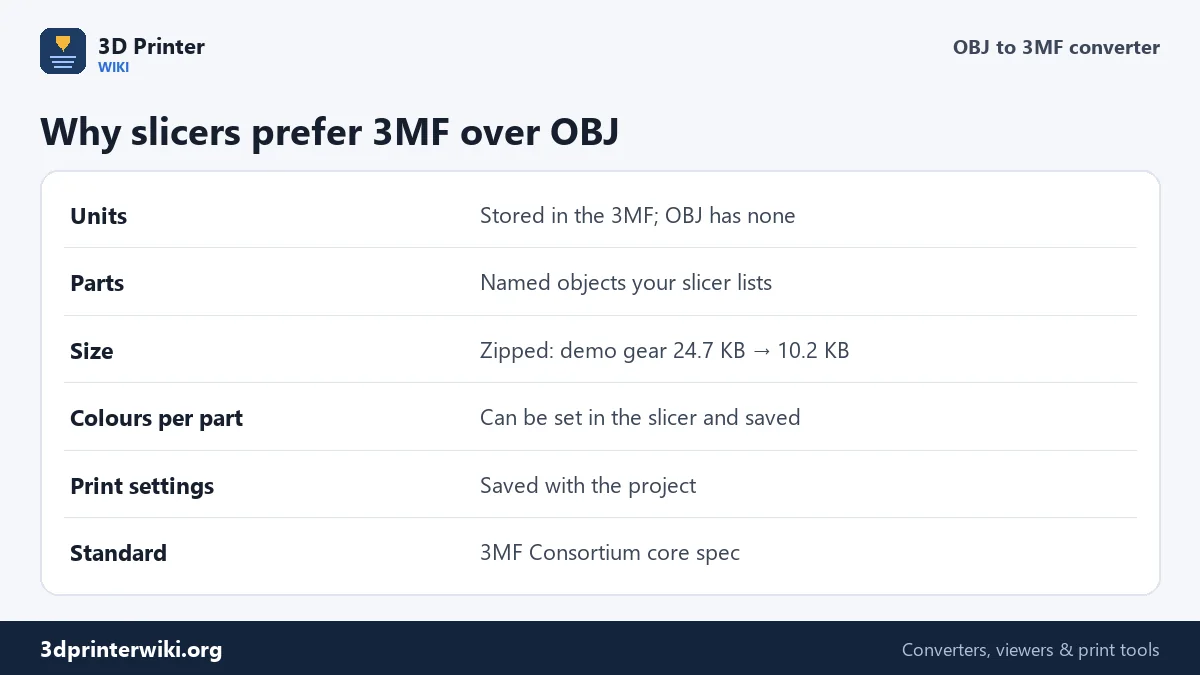
- Drop the .obj file on the box. The .mtl file isn't needed.
- Check the preview. OBJ files are read as Y up and turned to stand on the build plate. The size line shows millimetres.
- Fix the unit if the size is off: OBJ files from Blender and other 3D apps are often in metres, so a 10 cm figure shows as 0.1 mm. Choose Metres in Source units under More options.
- Download the 3MF. Tick Merge all parts into one object if you want a single object instead of separate parts.
Why 3MF instead of OBJ
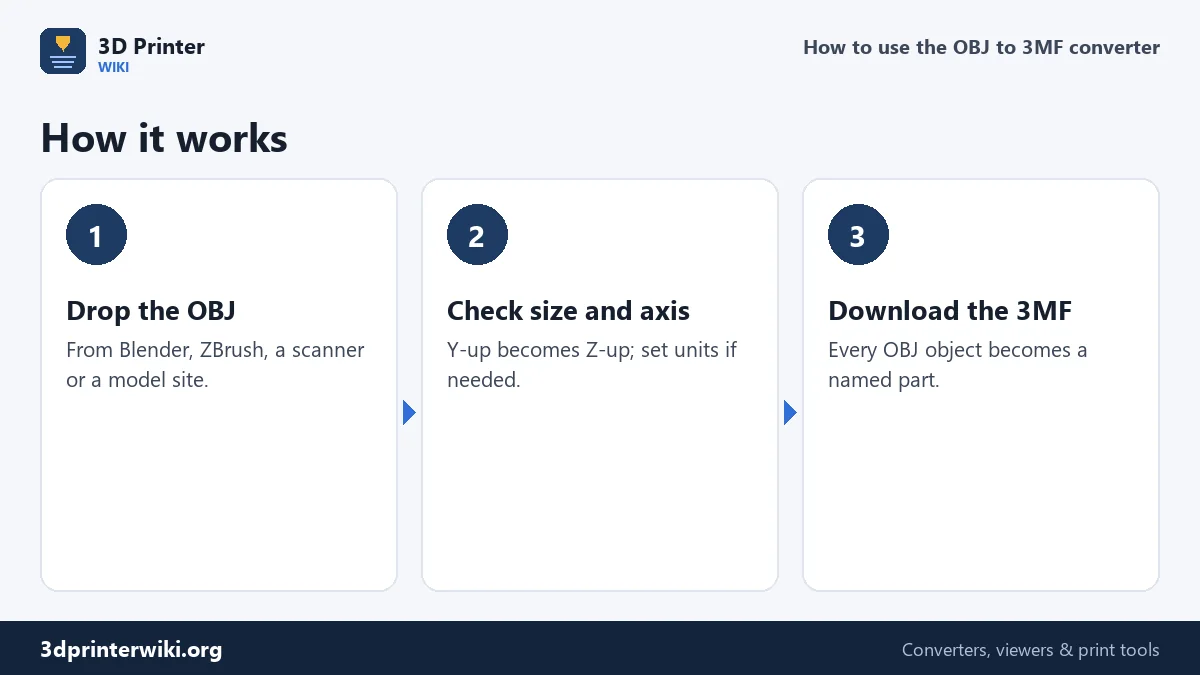
The size is stored. A 3MF file says its numbers are millimetres, so the slicer never guesses. That ends the classic problem of an OBJ from Blender appearing a thousand times too small, or a model from an inch-based program 25.4 times too small. Fix the size once here, and it stays right for everyone you share the file with.
Parts stay parts. Each o object or g group in the OBJ becomes a separate object in the 3MF, with its name. In Bambu Studio, OrcaSlicer and PrusaSlicer you can then select each part, give it its own filament for multi-colour printing, or change its settings, without having to split a merged mesh.
The file is smaller. 3MF stores each corner once and is zipped. The demo gear is 24.7 KB as OBJ and 10.2 KB as 3MF; large scanned models shrink even more.
Orientation
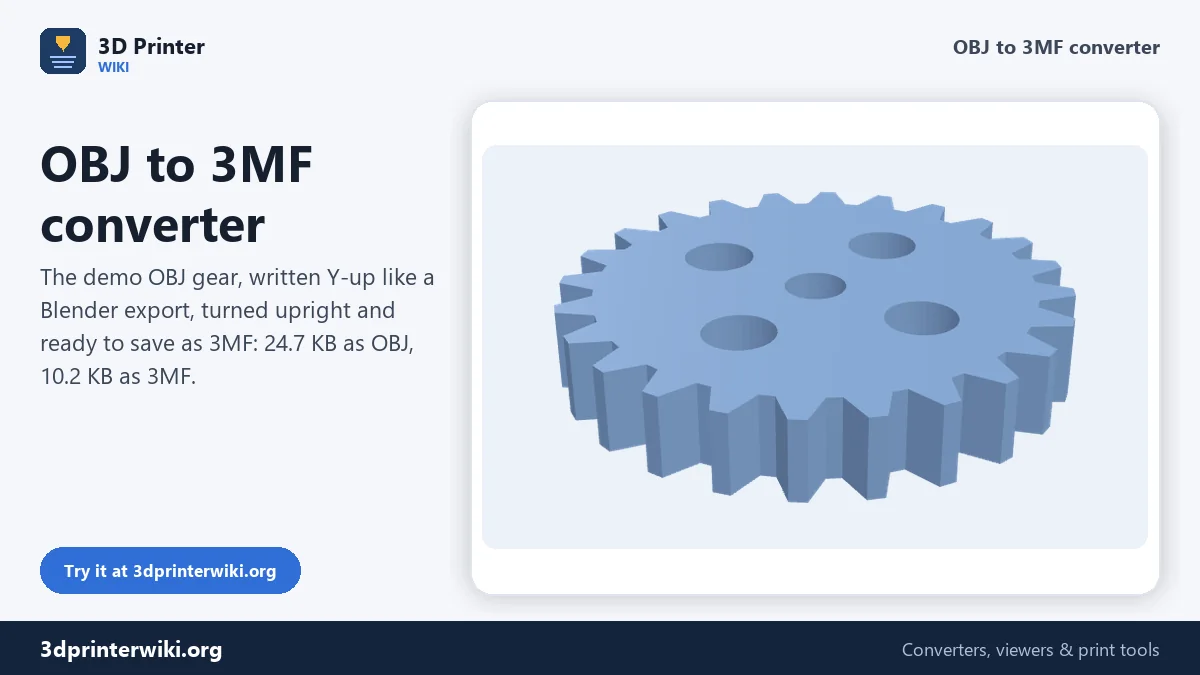
Blender, Maya and most 3D apps write OBJ files with Y as up; printers and slicers use Z. Opened directly in a slicer, such a model lies on its back. The converter assumes Y up for OBJ files and turns the model upright; the demo gear on this page is written that way and comes out lying flat on the plate as it should. OBJ files from CAD programs or scanners are sometimes already Z up. If your model comes out on its side, choose Z is up under More options. The model is also centred on the plate with its lowest point at zero.
Colours and textures
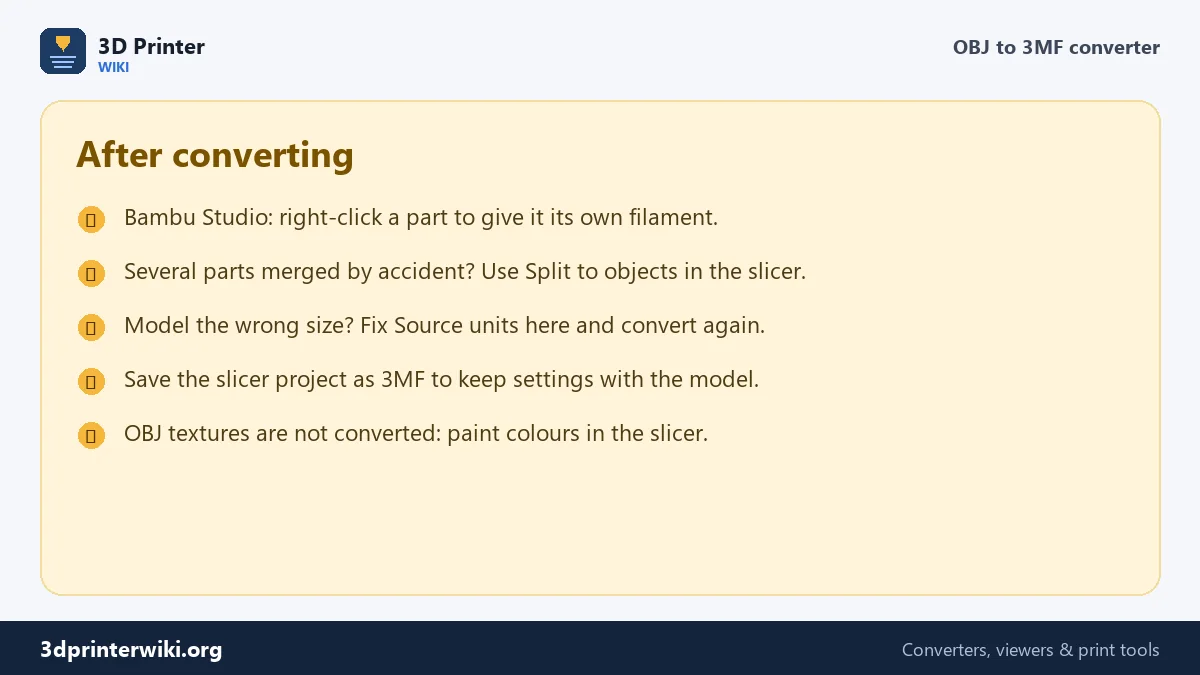
OBJ colours and textures live in a separate .mtl file and image files, which the converter doesn't read. The 3MF holds the shape and the parts. For a multi-colour print, assign filaments to the parts in your slicer; Bambu Studio and OrcaSlicer also have painting tools for colouring areas of a single part. Then save the slicer project, which is again a 3MF, now with your colours and print settings included.
Related conversions
To go straight to STL instead, use the OBJ to STL converter. If you only want to look at an OBJ, the OBJ viewer shows its parts and checks whether it is a closed solid. For a 3MF that is already in a slicer format and needs to go the other way, see 3MF to OBJ.
Checking the 3MF in your slicer
Open the 3MF in Bambu Studio, OrcaSlicer, PrusaSlicer or Cura and compare it with the preview here: same size, same orientation, same number of objects in the object list. A few more checks are worth a minute before printing:
- Warnings about open edges. OBJ files from art programs and scans are often not closed. Most slicers repair small problems on import; for larger ones, run the file through STL repair first.
- Thin parts. Hair, fingers and decorations that look fine on screen may be thinner than two nozzle lines at print size. The slicer's preview shows where walls disappear.
- Floating parts. Objects that hover above the plate in the OBJ, like a hat above a head, are placed where they were. Use the slicer's drop-to-plate or arrange function for parts that should be printed separately.
Once it looks right, save the slicer project. The project file is a 3MF too, now including your filament choices and print settings, which makes reprints and sharing easy.
OBJ to 3MF questions
How do I convert OBJ to 3MF?
Drop the OBJ on this page, check the size, and press Download 3MF.
Is 3MF better than OBJ for printing?
Yes. 3MF stores the unit, keeps parts with their names and is smaller, so slicers open it at the right size.
Why is my OBJ tiny in the slicer?
It was made in metres. Choose Metres in Source units here and convert it to 3MF.
Are the OBJ objects kept separate?
Yes. Each object or group becomes its own named part, unless you tick Merge all parts.
Can Bambu Studio open the 3MF?
Yes, as can OrcaSlicer, PrusaSlicer, Cura and every slicer that reads the 3MF standard.
Are OBJ textures converted?
No. Assign colours to the parts in your slicer instead.
Does converting change the shape of my model?
No. The triangles are copied exactly; only the orientation, the unit and the packaging change.
How do I convert several OBJ files into one 3MF?
Convert each OBJ here, then open them together in your slicer and save the project as one 3MF. The STL to 3MF page can also combine files.
More 3D printing tools
Updated November 2026 · How these tools work